ActcastOS Migration
This page was machine-translated. The Japanese page is the official version.
Support for ActcastOS 1 and ActcastOS 2 has already ended.
For information about ActcastOS 4, see this page.
Thank you for using Actcast. To continue providing a secure service, Actcast is releasing a major update of the device firmware. As a result, some of the supported devices will change.
ActcastOS migration schedule
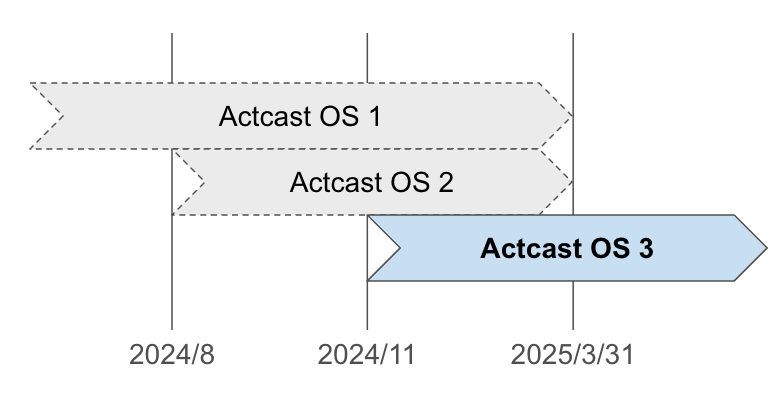
ActcastOS is currently provided in the following three versions.
Important
We had announced that support for ActcastOS 1 and 2 would end on February 28, but support has been extended to March 31.
| OS | Version | Release date | End of support |
|---|---|---|---|
| ActcastOS 1 | 0.3.x, 1.x.y |
At service launch | March 31, 2025 |
| ActcastOS 2 | 2.x.y |
August 2024 | March 31, 2025 |
| ActcastOS 3 | 3.x.y |
November 2024 | To be determined |
Support for ActcastOS 1 and ActcastOS 2 ends on March 31, 2025. Please migrate to ActcastOS 3 before then.
Devices can be updated in order from ActcastOS 1 → ActcastOS 2 → ActcastOS 3, but you cannot update directly from ActcastOS 1 to ActcastOS 3.
To update to ActcastOS 3, you must first update to ActcastOS 2.
For detailed update instructions, see
Changes to supported devices in ActcastOS 1 and ActcastOS 2
ActcastOS 2 no longer supports the following device:
- Raspberry Pi Zero 2W
Support for the following peripherals also ends:
- 4GPi
- ABIT AK-020 (3G/LTE dongle)
We will contact customers using these devices individually about how to proceed.
Upgrade to ActcastOS 2
Note
From ActcastOS 2 onward, HDMI shows only the output from the application. Logs and other information are no longer displayed.
Upgrade an individual device
-
Open the device’s
Device Detailspage and confirm that the “ActcastOS 2 is available” header is displayed.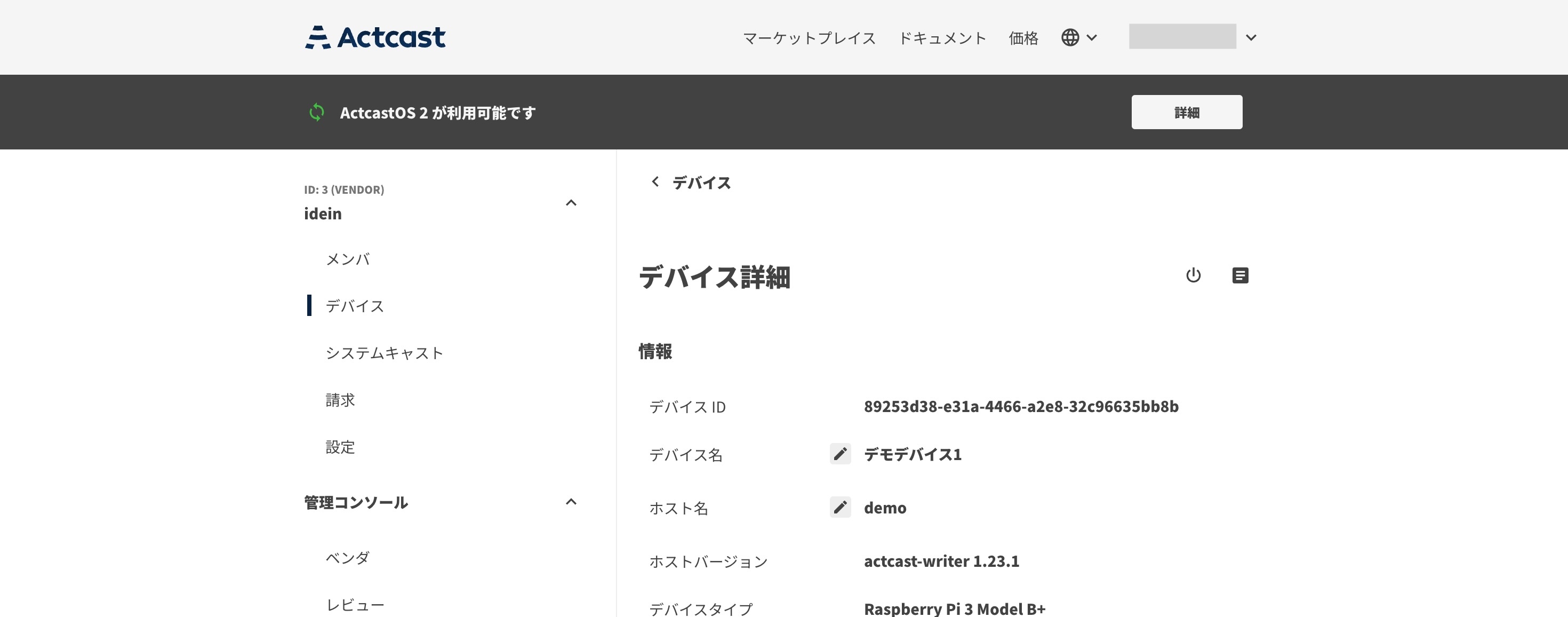
Note
The header is not displayed for devices that have already been upgraded to ActcastOS 2.
-
Confirm that the firmware version is
1.64.0or later. If it is earlier than1.64.0, run a firmware update to update the firmware to1.64.0or later.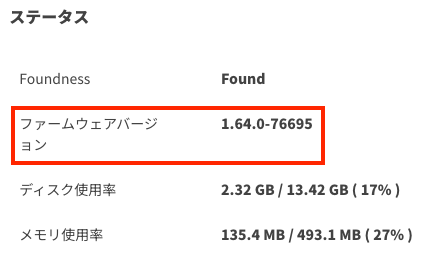
-
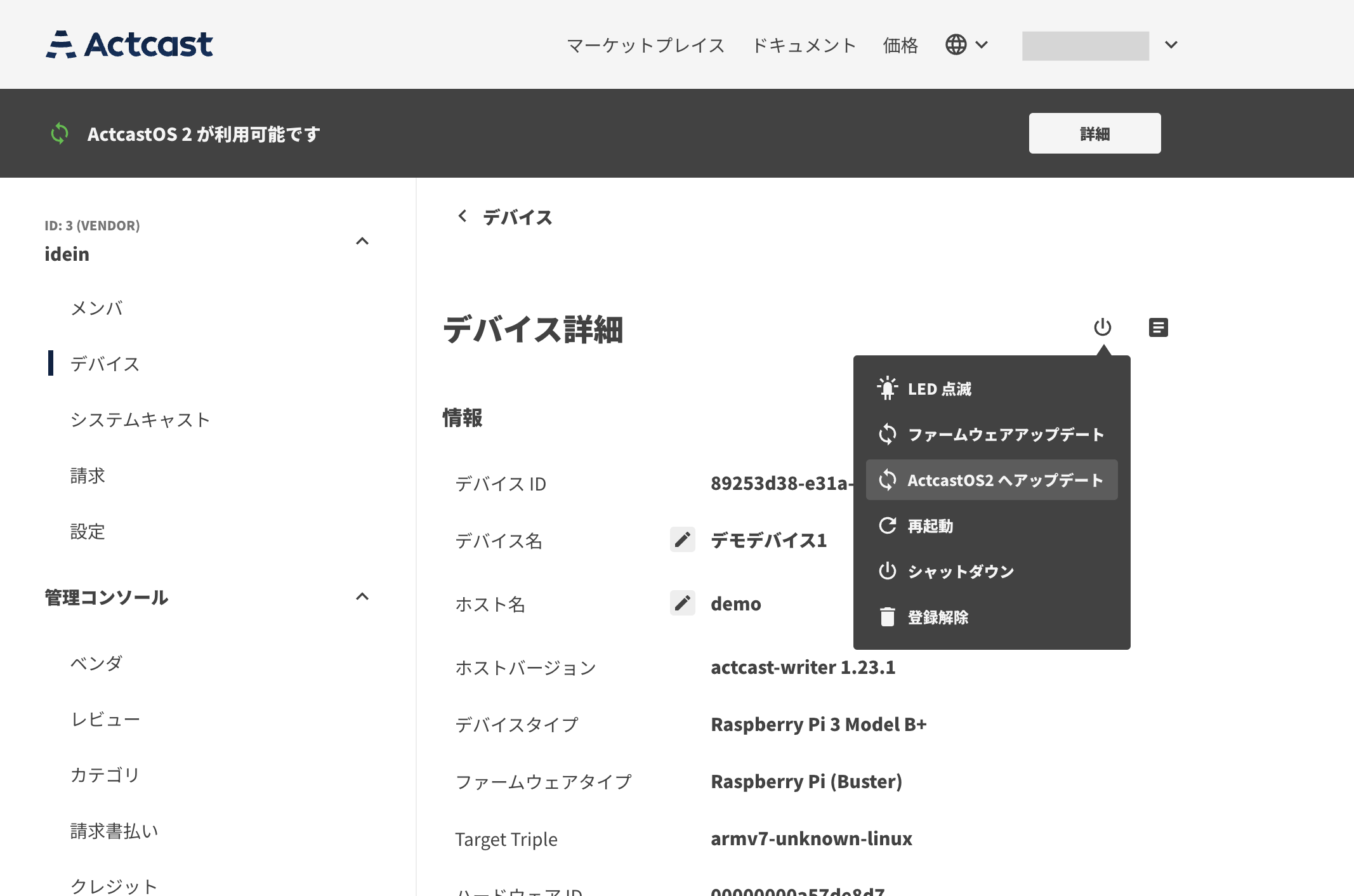
Select “Update to ActcastOS 2” from the menu.
-
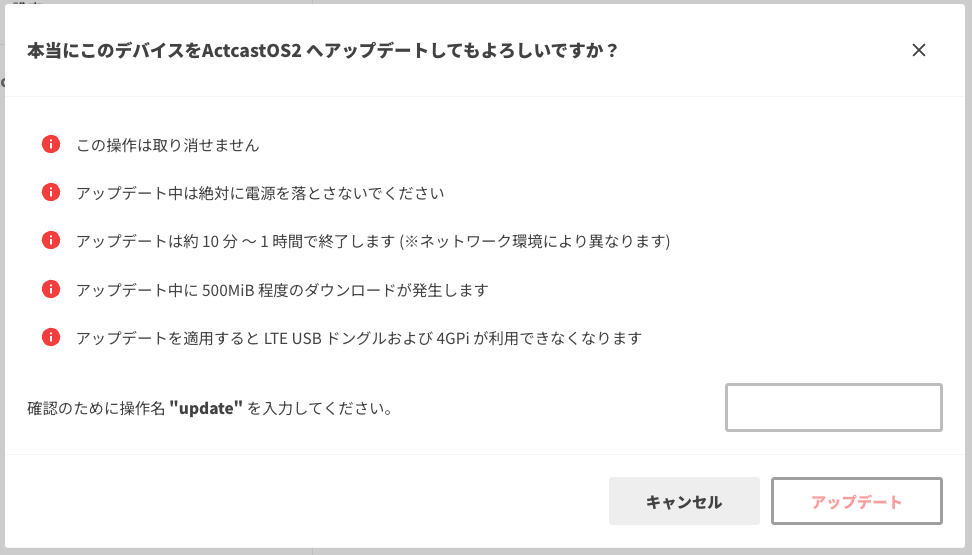
Review the notes, enter “update” in the input field, and click the “Update” button.
-
After a while, the upgrade is complete when the “ActcastOS 2 is available” header disappears and the “Firmware Version” is
2.2.0or later.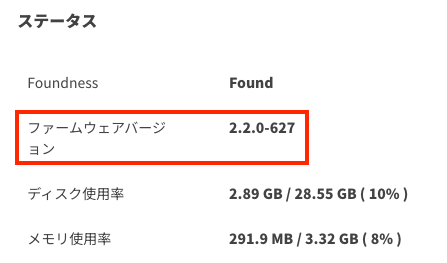
Important
If the firmware was pinned to a specific firmware version in the firmware settings, the pinned version is automatically changed to 2.2.0-627 after the upgrade to ActcastOS 2.
Upgrade multiple devices at once
-
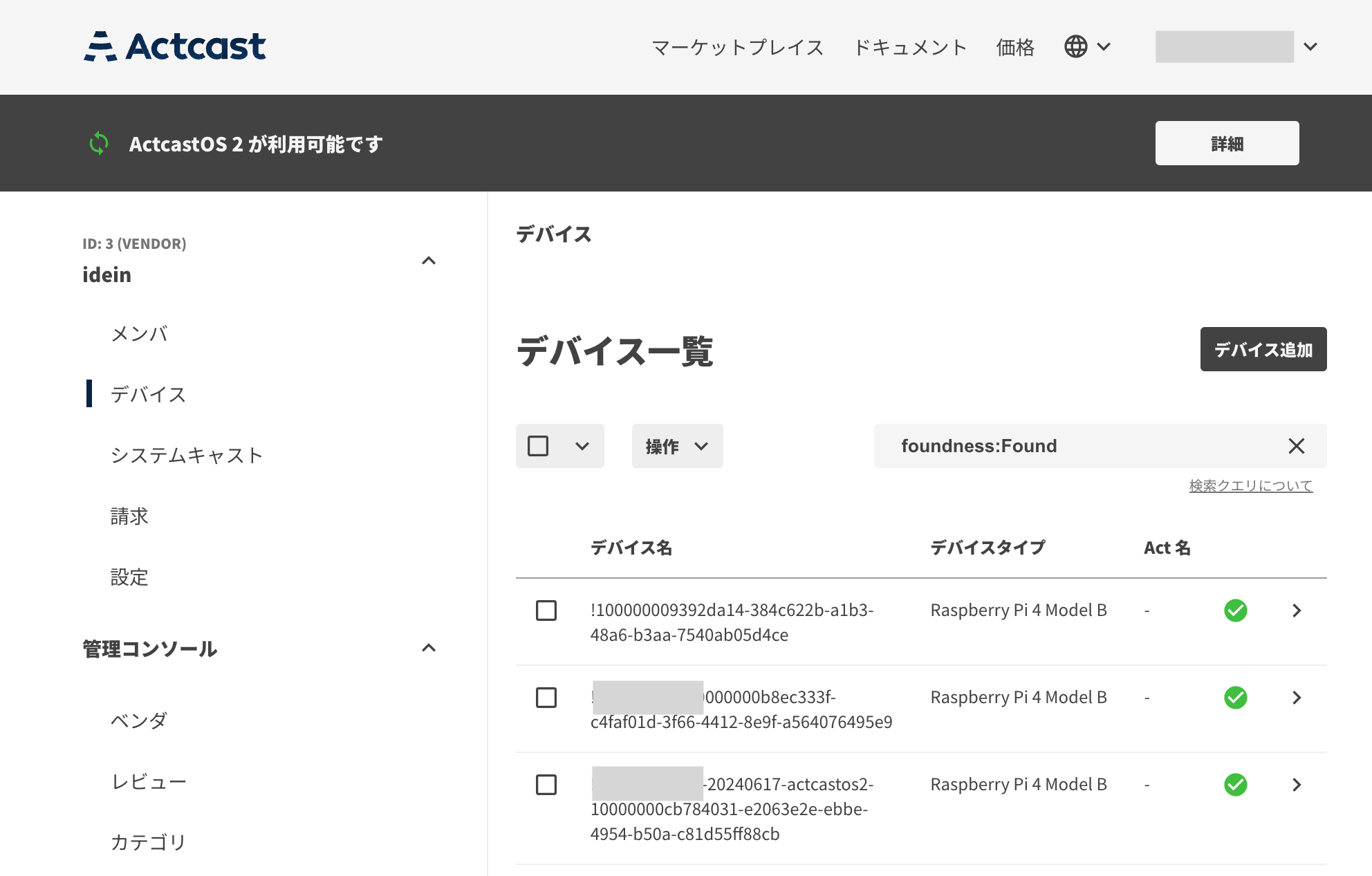
Open “Devices” for the group and confirm that the “ActcastOS 2 is available” header is displayed.
The header is displayed when the group has at least one device that has not been upgraded to ActcastOS 2.
-
Select the devices to upgrade to ActcastOS 2. Searching with the condition
foundness:Found firmware_version:1.shows only devices that are online and running ActcastOS 1.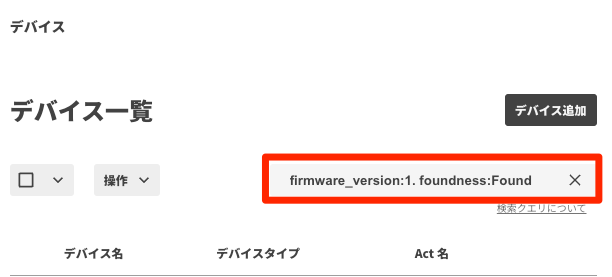
-
To upgrade to ActcastOS 2, the firmware version must be
1.64.0or later. Select the ActcastOS 1 devices, run “Firmware Update” from the menu, and wait about 10 minutes to 1 hour for it to complete. (The waiting time depends on network conditions.)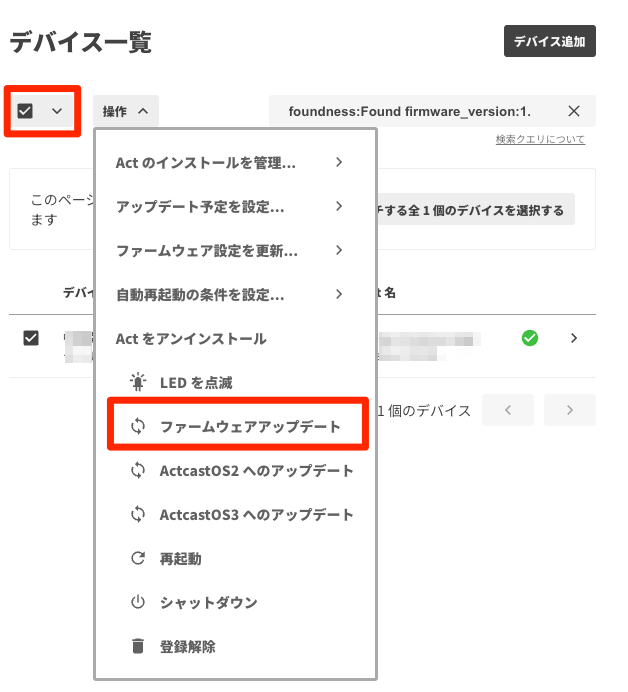
-
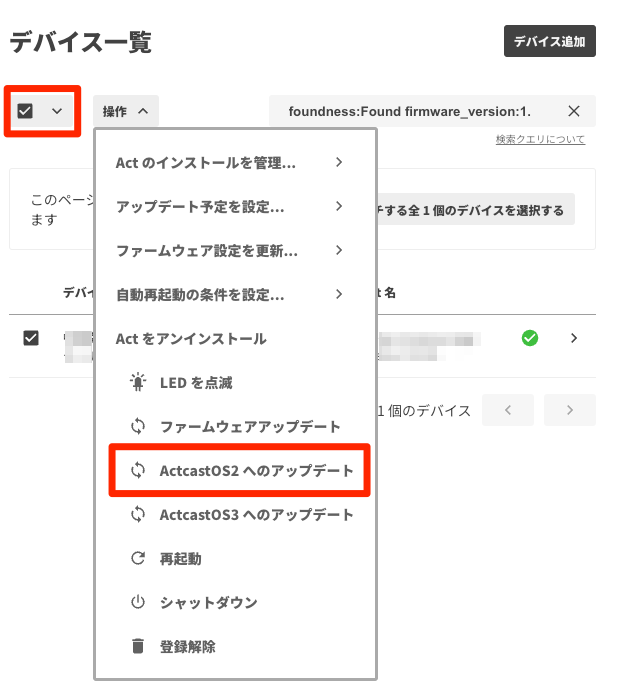
With the ActcastOS 1 devices selected, choose “Update to ActcastOS 2” from the menu.
-
Review the notes, enter “update” in the input field, and click the “Update” button.

-
The header disappears when all devices in the group have been upgraded to ActcastOS 2.
Important
For devices whose firmware is pinned to a specific firmware version in the firmware settings, the pinned version is automatically changed to 2.2.0-627 after the upgrade to ActcastOS 2.
Upgrade to ActcastOS 3
Warning
If you manage many devices for the same purpose, you can control the risk of the upgrade by first upgrading some of the devices, confirming that there are no problems, and then upgrading the rest.
Upgrade an individual device
-
Open the device’s
Device Detailspage and confirm that the “ActcastOS 3 is available” header is displayed.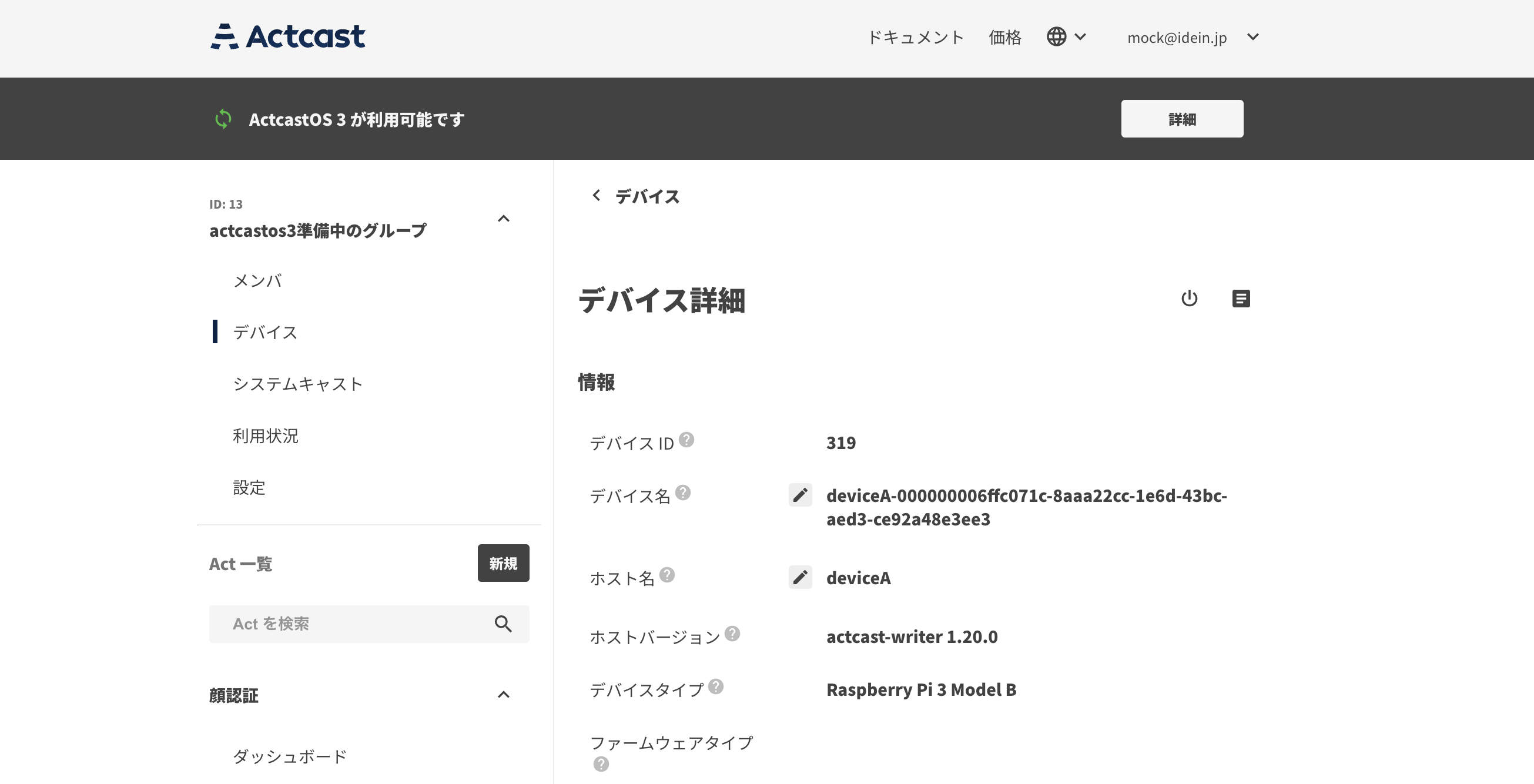
Note
The header is not displayed for devices that have already been upgraded to ActcastOS 3.
-
Confirm that the firmware version is
2.10.0or later. If it is earlier than2.10.0, run a firmware update to update the firmware to2.10.0or later.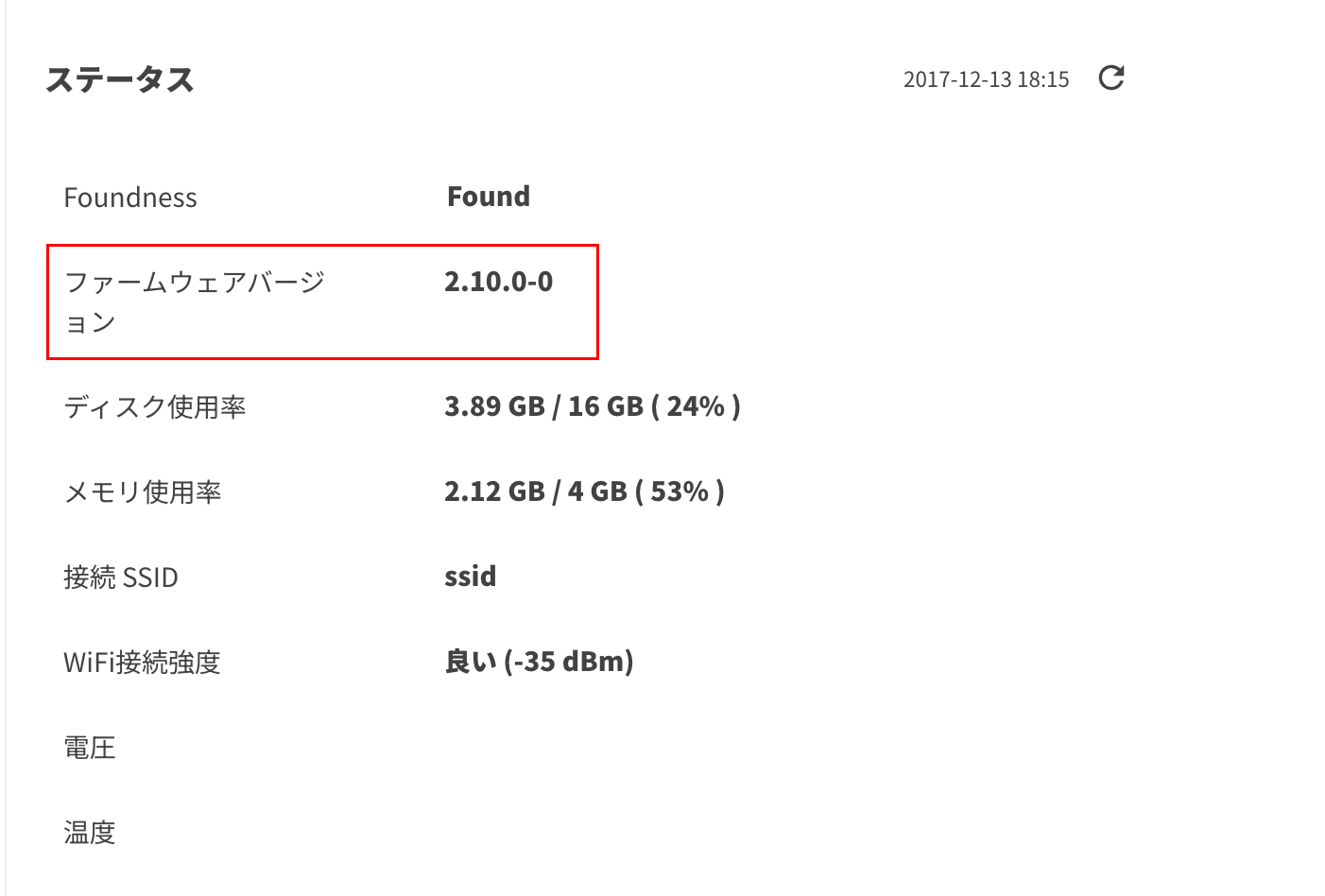
-
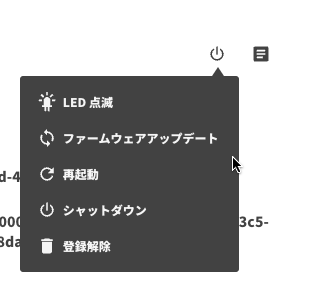
To upgrade to ActcastOS 3, the installed Act must also support ActcastOS 3. If an unsupported Act is installed, the “Update to ActcastOS 3” menu item is not displayed. Uninstall the Act, or upgrade it to a version that also supports ActcastOS 3.
-
When the device is ready to be upgraded, “Update to ActcastOS 3” appears in the menu. Click it.

-
Review the notes, enter “update” in the input field, and click the “Update” button.

-
After a while, the upgrade is complete when the “ActcastOS 3 is available” header disappears and the “Firmware Version” is
3.0.11or later.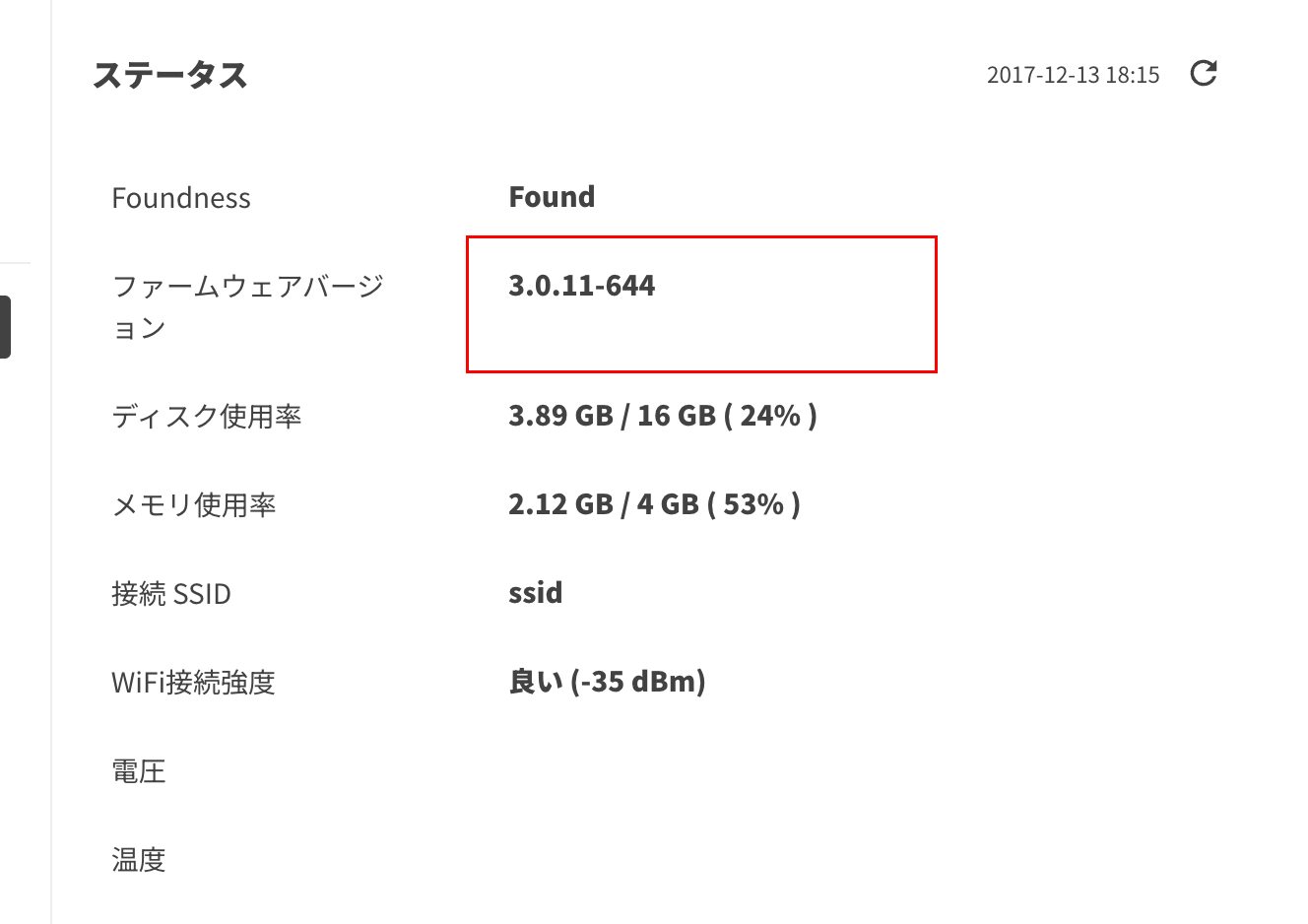
Important
If the firmware was pinned to a specific firmware version in the firmware settings, the pinned version is automatically changed to 3.0.11-644 after the upgrade to ActcastOS 3.
Upgrade multiple devices at once
-
Open “Devices” for the group and confirm that the “ActcastOS 3 is available” header is displayed.
The header is displayed when the group has at least one device that has not been upgraded to ActcastOS 3.

-
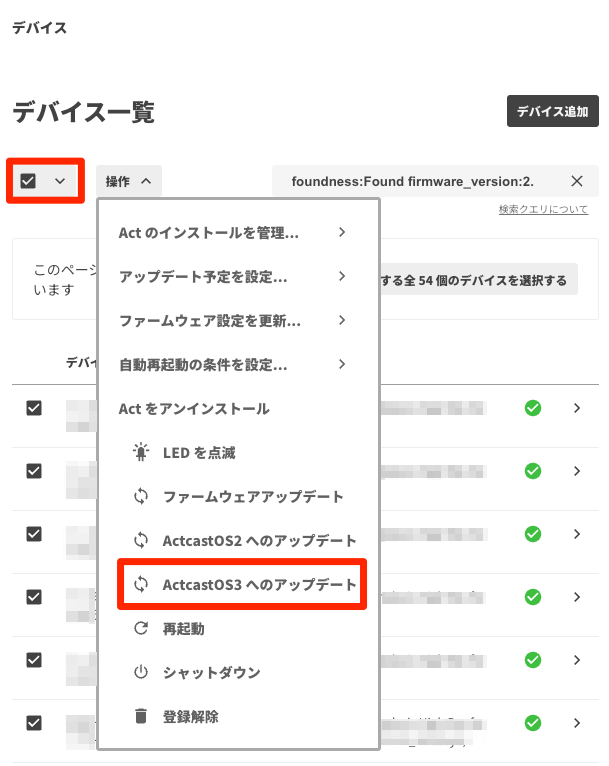
Select the devices to upgrade to ActcastOS 3. Searching with the condition
foundness:Found firmware_version:2.shows only devices that are online and running ActcastOS 2.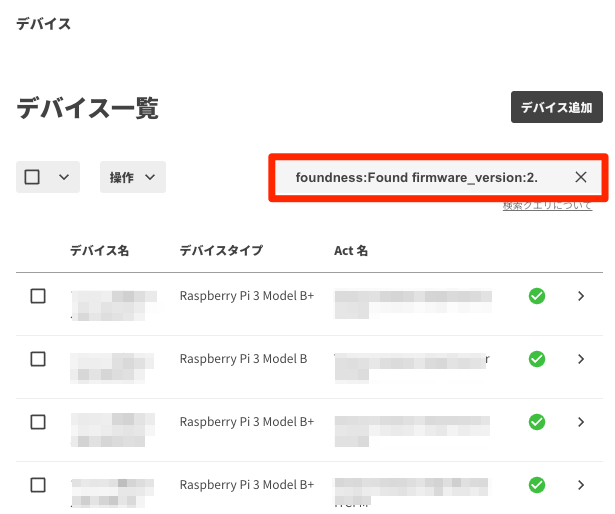
-
To upgrade to ActcastOS 3, the firmware version must be
2.10.0or later. Select the ActcastOS 2 devices, run “Firmware Update” from the menu, and wait about 10 minutes to 1 hour for it to complete. (The waiting time depends on network conditions.)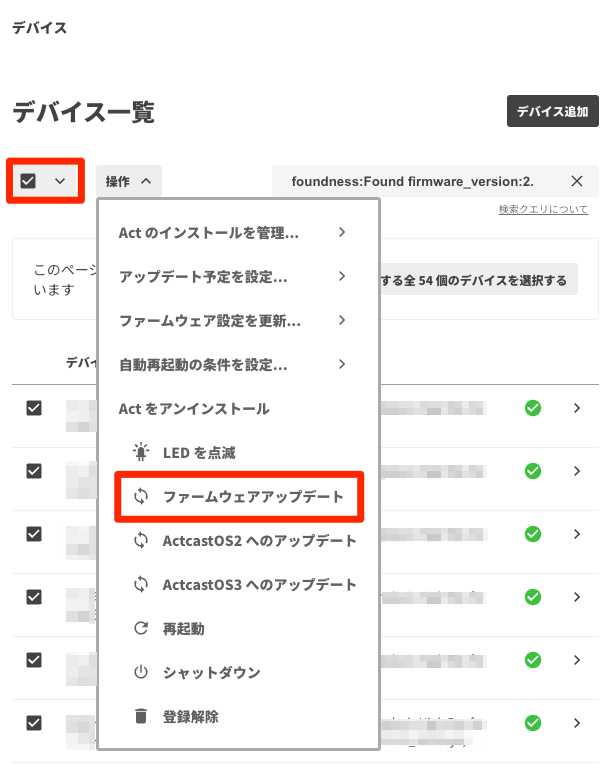
-
To upgrade to ActcastOS 3, the installed Act must also support ActcastOS 3. If an unsupported Act is installed, selecting “Update to ActcastOS 3” on the device list does not upgrade the device. Uninstall the Act, or upgrade it to a version that also supports ActcastOS 3.
-
With the ActcastOS 2 devices selected, choose “Update to ActcastOS 3” from the menu.
-
Review the notes, enter “update” in the input field, and click the “Update” button.

-
The header disappears when all devices in the group have been upgraded to ActcastOS 3.
Important
For devices whose firmware is pinned to a specific firmware version in the firmware settings, the pinned version is automatically changed to 3.0.11-644 after the upgrade to ActcastOS 3.
Upgrade to ActcastOS 4
Important
ActcastOS 4 does not support Raspberry Pi 3 Model B or Raspberry Pi 3 Model B+, so these devices cannot be upgraded to ActcastOS 4. See devices supported by Actcast for details.
Warning
If you manage many devices for the same purpose, you can control the risk of the upgrade by first upgrading some of the devices, confirming that there are no problems, and then upgrading the rest.
Upgrade an individual device
-
Open the device’s
Device Detailspage and confirm that the “ActcastOS 4 is available” header is displayed.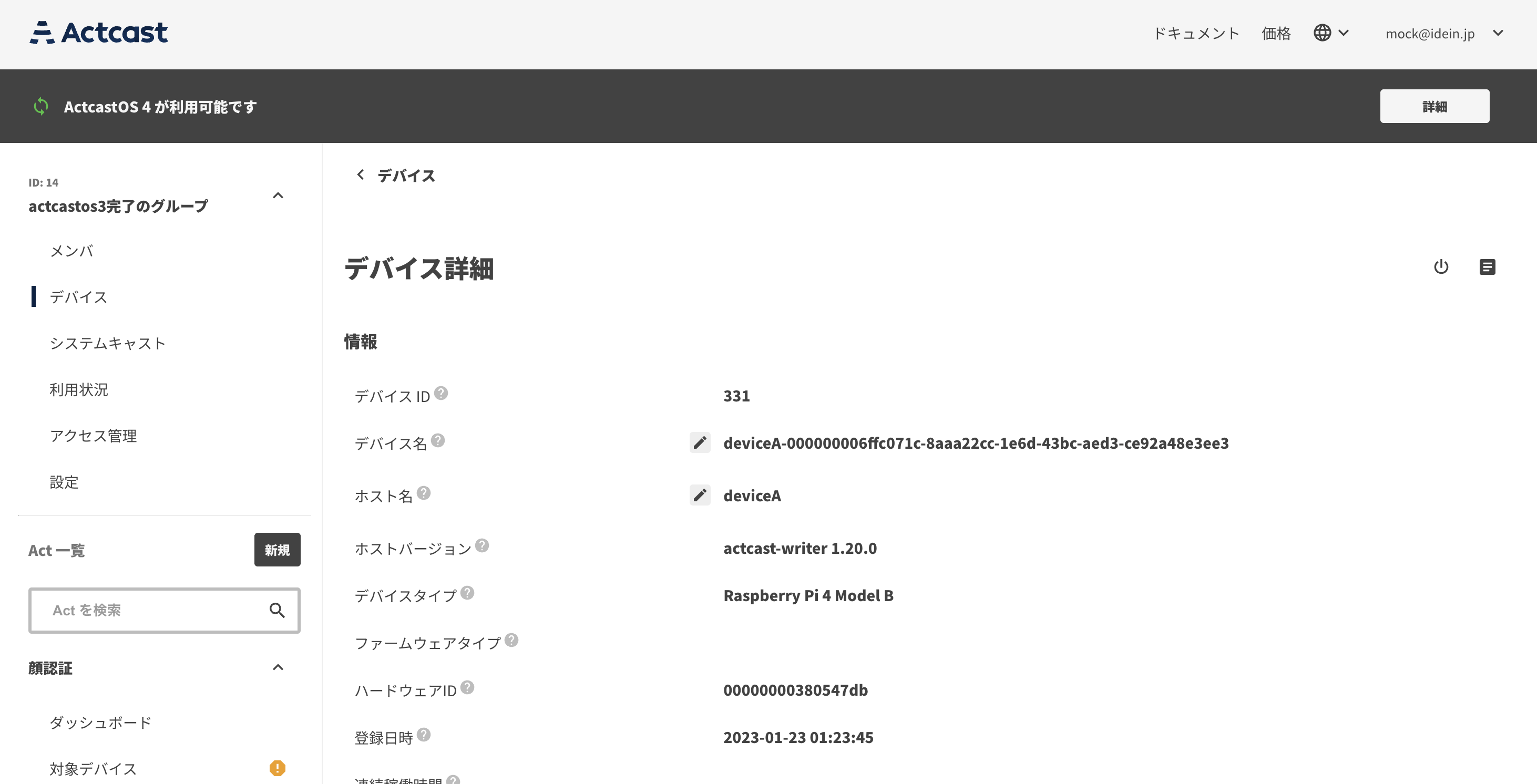
Note
The header is not displayed for devices that have already been upgraded to ActcastOS 4.
-
Confirm that the firmware version is
3.93.0or later. If it is earlier than3.93.0, run a firmware update to update the firmware to3.93.0or later.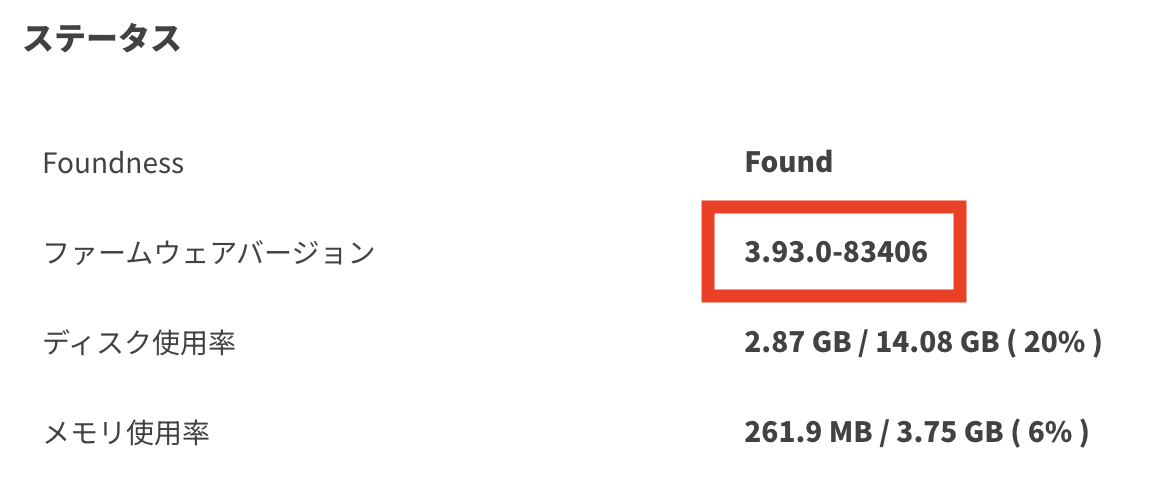
-
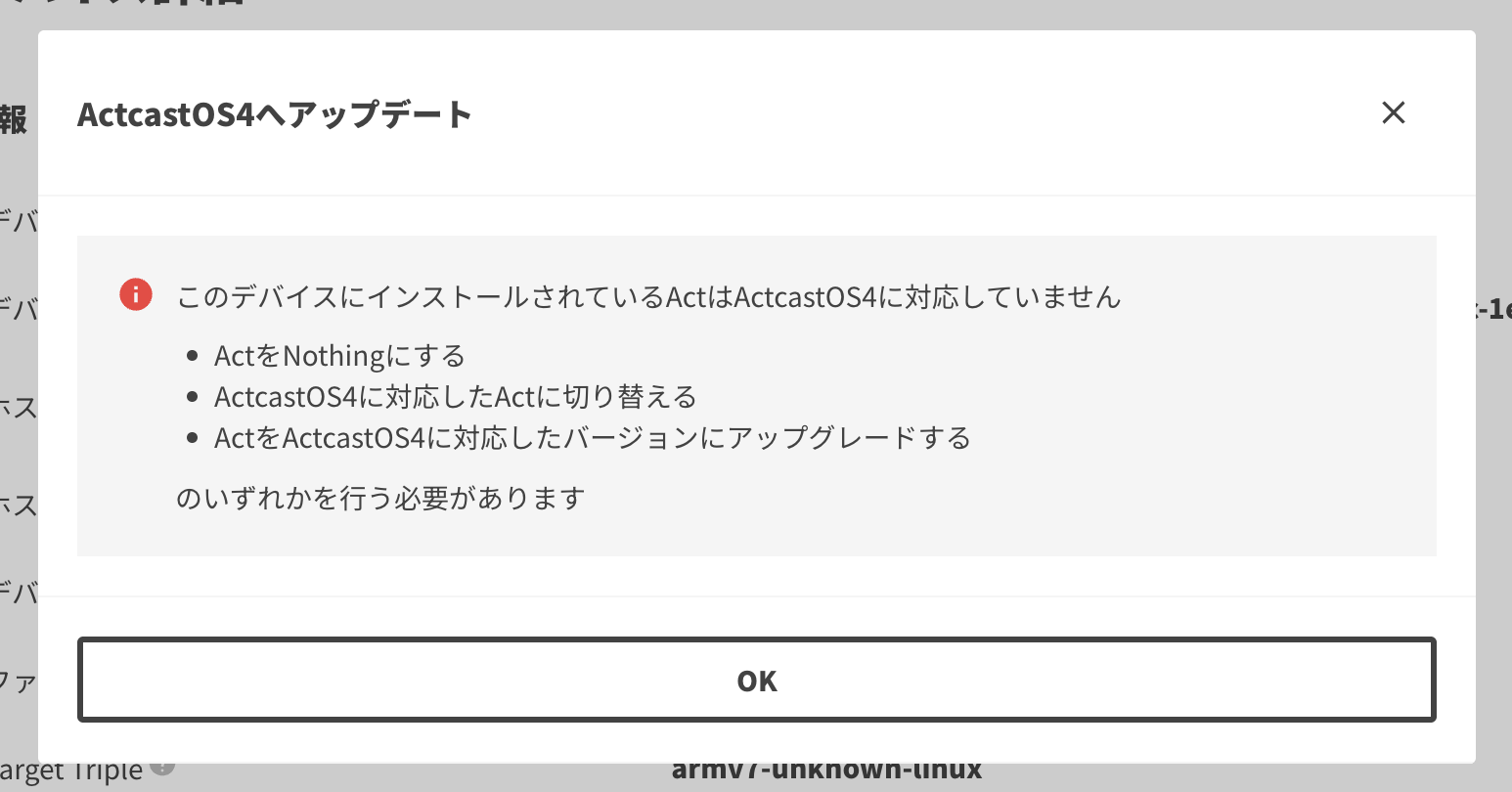
To upgrade to ActcastOS 4, the installed Act must also support ActcastOS 4. If an unsupported Act is installed, a warning is displayed when you press the “Update to ActcastOS 4” button. Uninstall the Act, or upgrade it to a version that also supports ActcastOS 4.
-
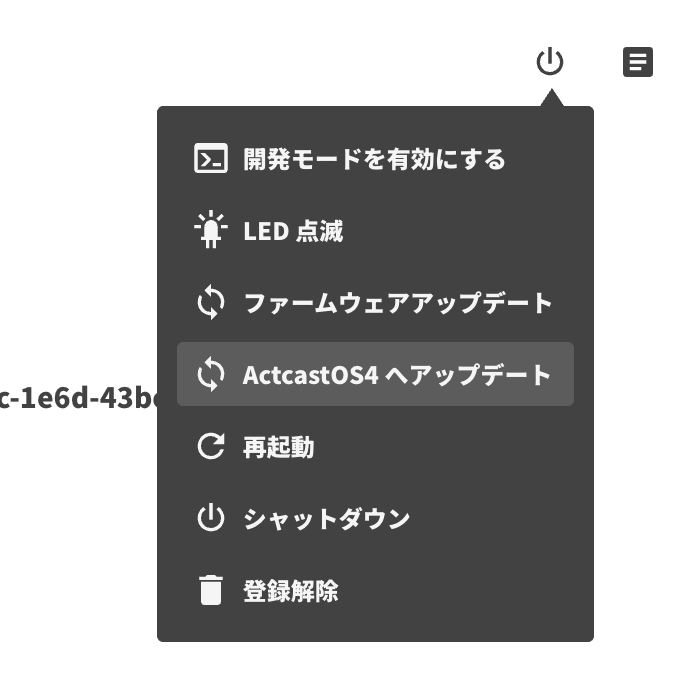
When the device is ready to be upgraded, “Update to ActcastOS 4” appears in the menu. Click it.
-
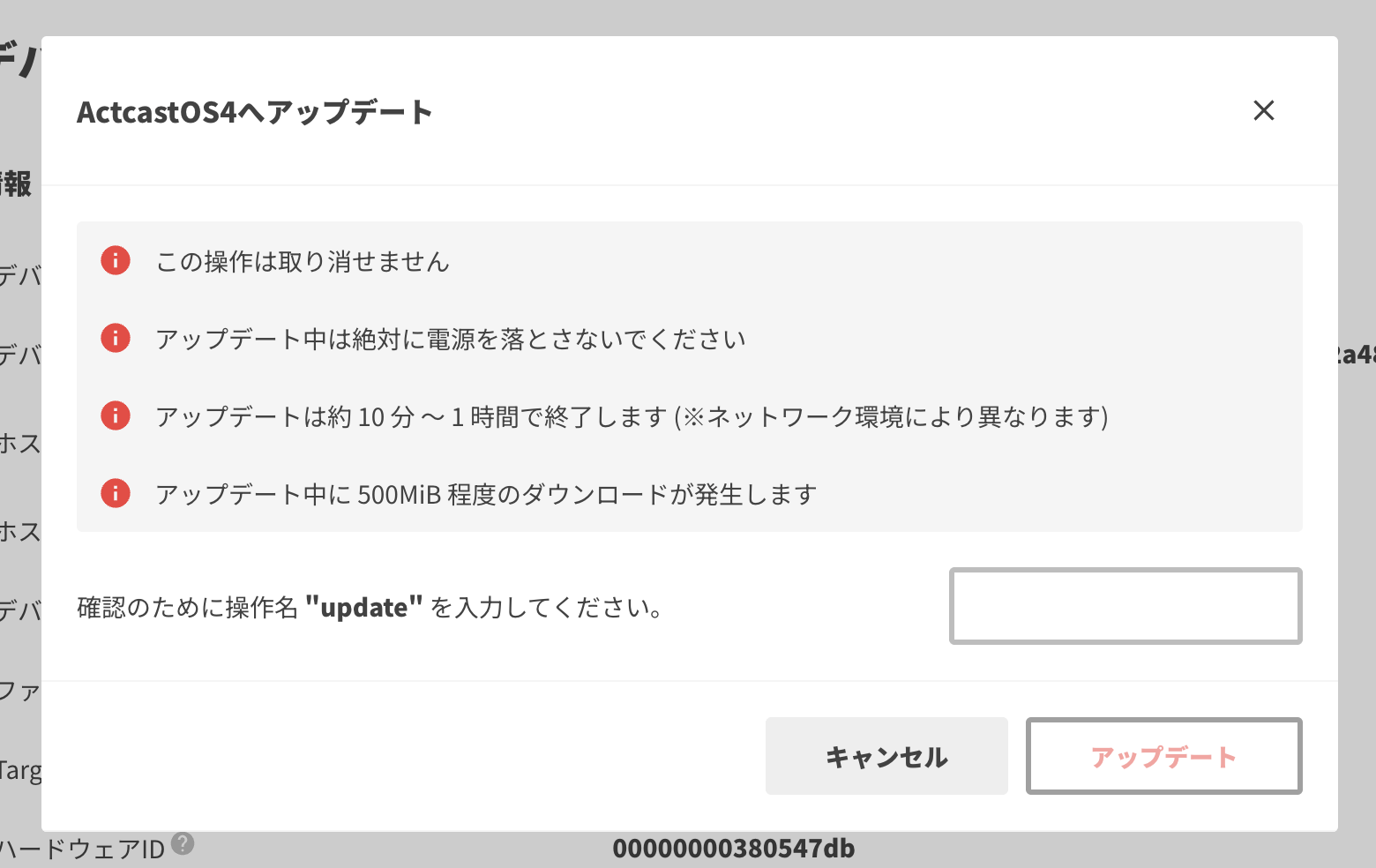
Review the notes, enter “update” in the input field, and click the “Update” button.
-
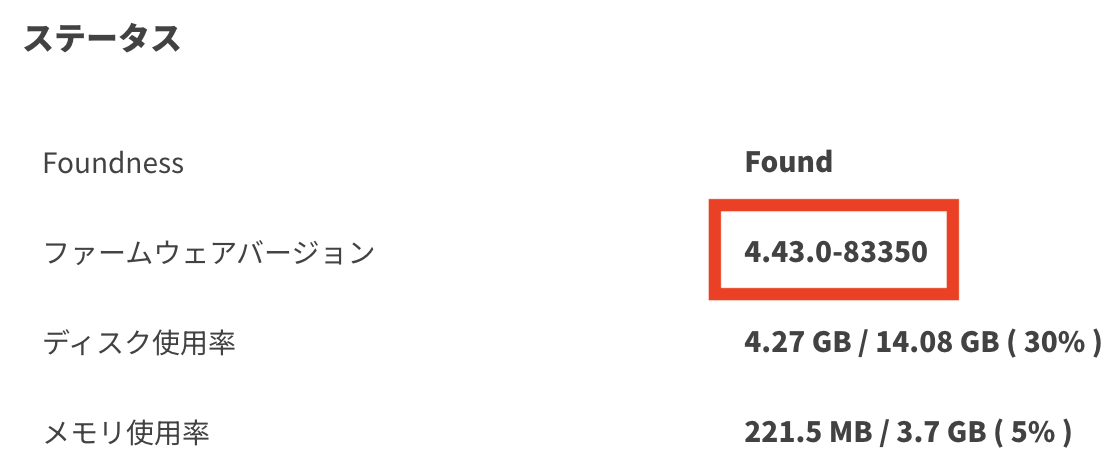
After a while, the upgrade is complete when the “ActcastOS 4 is available” header disappears and the “Firmware Version” has been updated.
Important
If the firmware was pinned to a specific firmware version in the firmware settings, the pinned version is updated automatically after the upgrade to ActcastOS 4.
Upgrade multiple devices at once
-
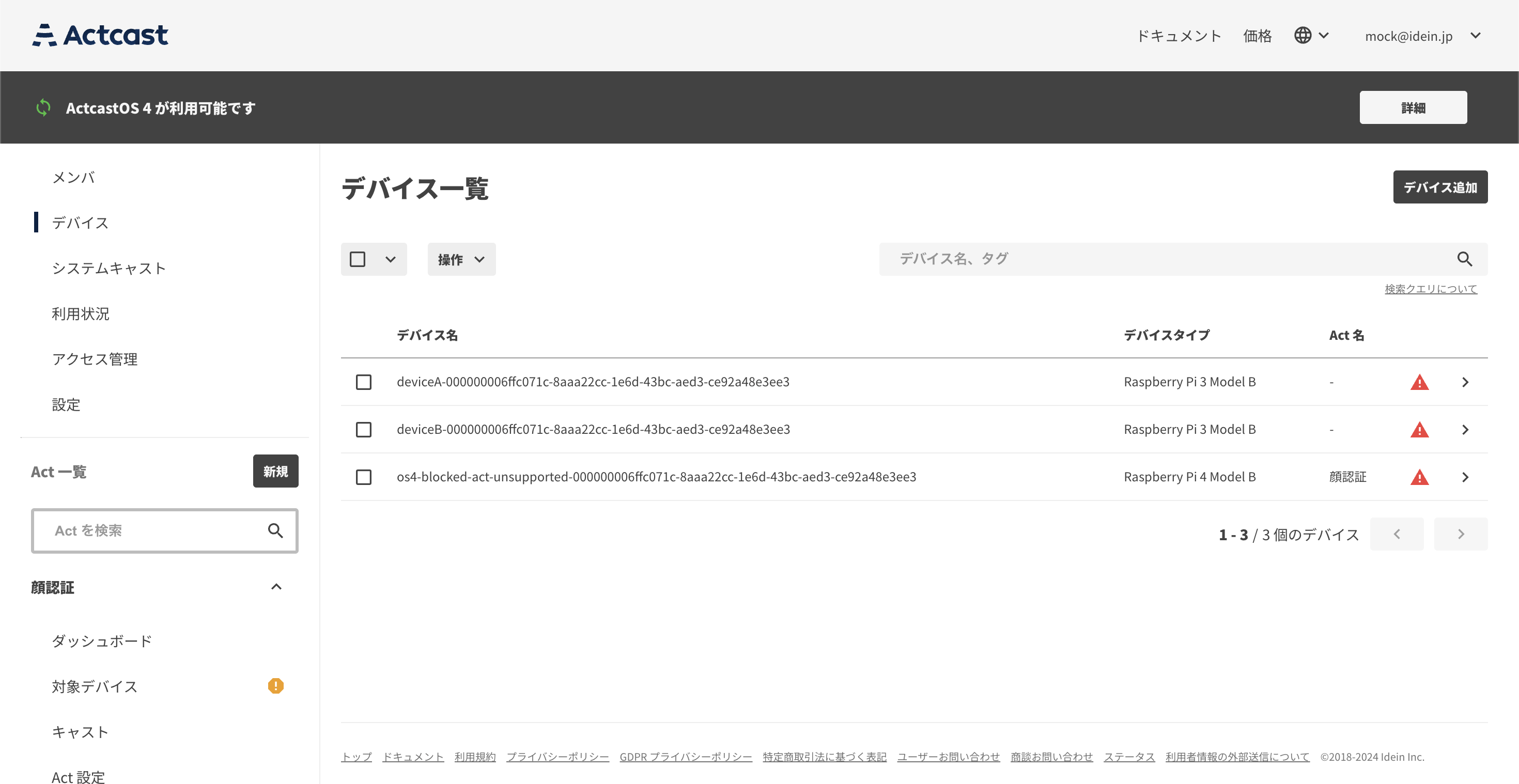
Open “Devices” for the group and confirm that the “ActcastOS 4 is available” header is displayed.
The header is displayed when the group has at least one device that is supported by ActcastOS 4 and is currently running ActcastOS 3.
-
Select the devices to upgrade to ActcastOS 4. Searching with the condition
foundness:Found firmware_version:3.shows only devices that are online and running ActcastOS 3.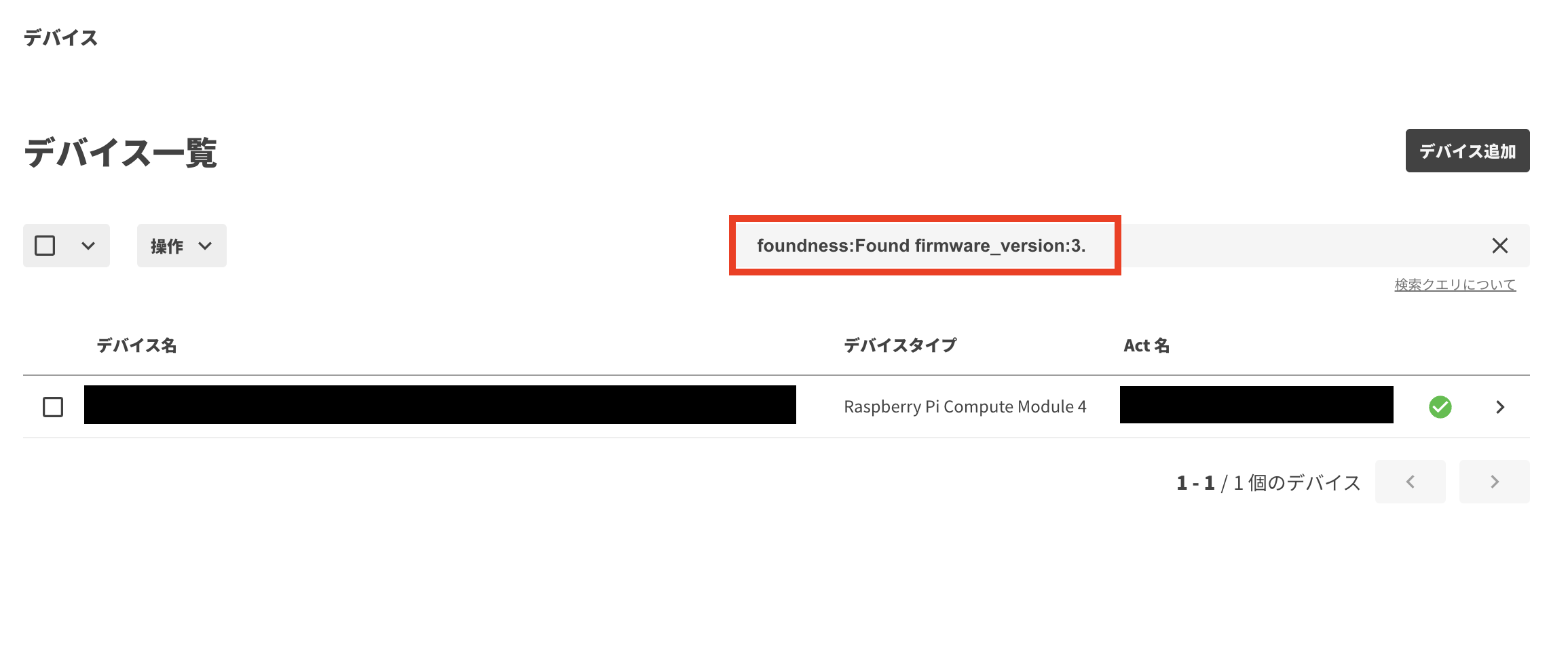
-
To upgrade to ActcastOS 4, the firmware version must be
3.93.0or later. Select the ActcastOS 3 devices, run “Firmware Update” from the menu, and wait about 10 minutes to 1 hour for it to complete. (The waiting time depends on network conditions.)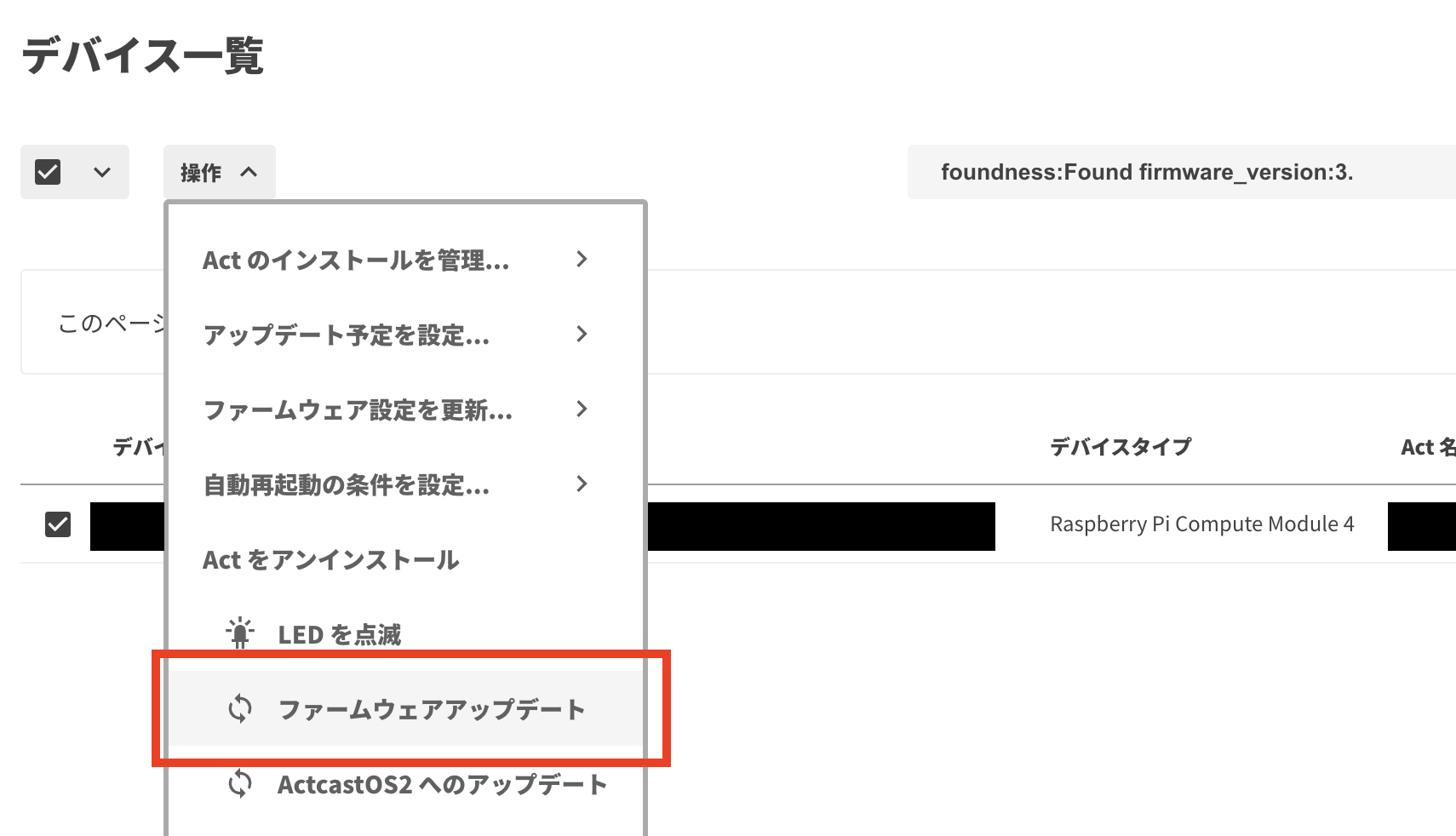
-
To upgrade to ActcastOS 4, the installed Act must also support ActcastOS 4. If an unsupported Act is installed, selecting “Update to ActcastOS 4” on the device list does not upgrade the device. Uninstall the Act, or upgrade it to a version that also supports ActcastOS 4.
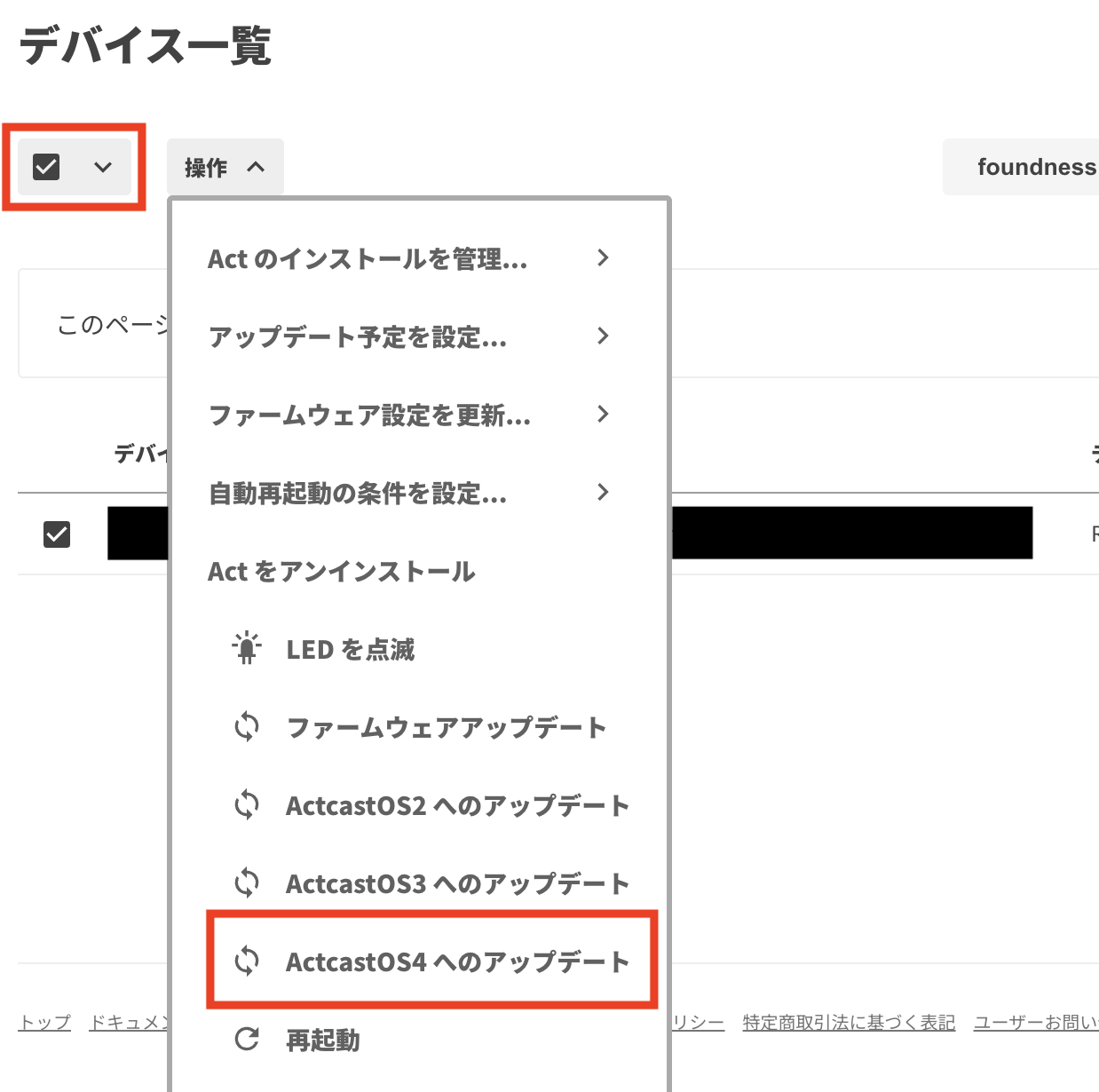
-
With the ActcastOS 3 devices selected, choose “Update to ActcastOS 4” from the menu.
Note
Raspberry Pi 3 Model B / B+ devices cannot be upgraded to ActcastOS 4. Nothing happens if you select these devices and run “Update to ActcastOS 4”.
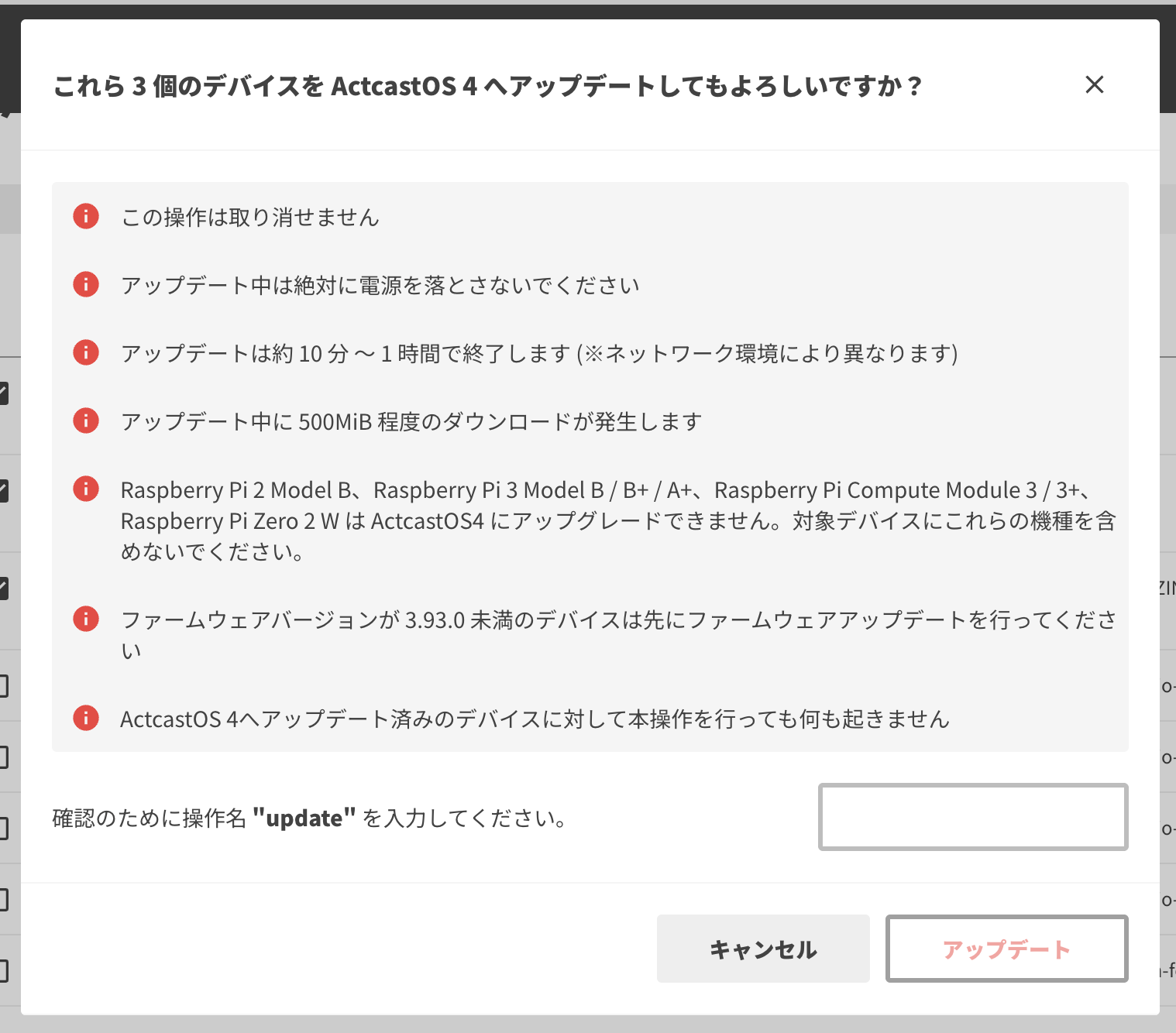
-
Review the notes, enter “update” in the input field, and click the “Update” button.
-
The header disappears when the group no longer has any devices that are supported by ActcastOS 4 and still running ActcastOS 3.
Important
For devices whose firmware is pinned to a specific firmware version in the firmware settings, the pinned version is updated automatically after the upgrade to ActcastOS 4.