Device Setup
This page was machine-translated. The Japanese page is the official version.
Register a device with Actcast so that you can manage it.
- Select the group where you want to add the device from the group selection page.
- On the device list page, click
Add Device.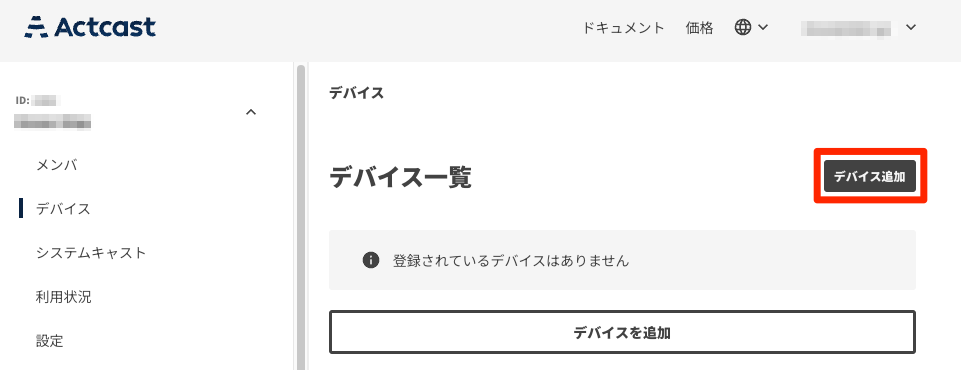
- Follow the instructions on the device registration page.
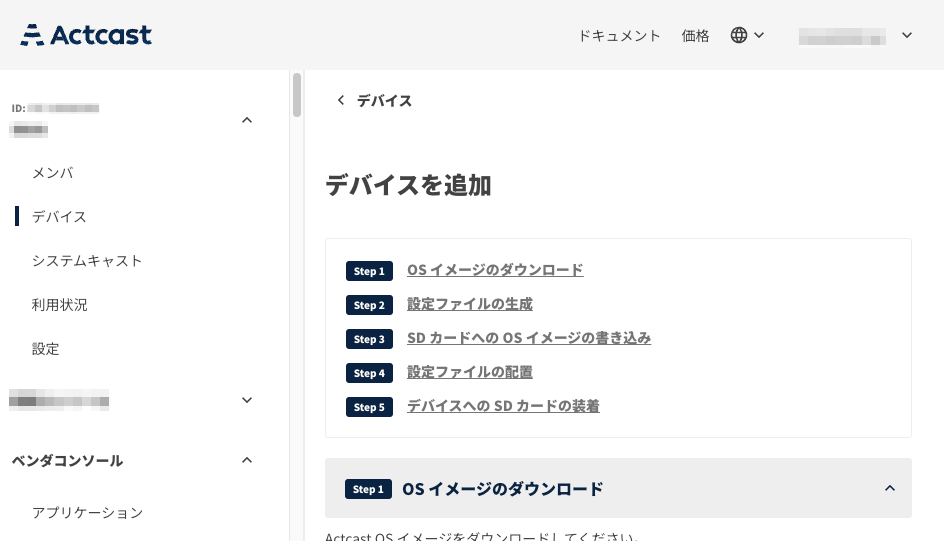
Download the OS image
Select an Actcast OS version and download the OS image file.
- Review the ActcastOS 4 caveats before using ActcastOS 4.
Generate the configuration file
Enter the information required to set up the device and generate a configuration file.
- For details about each setting, see Setting Details.
- You can reuse one configuration file when setting up multiple devices.
Write the OS image to an SD card
Write the downloaded OS image to an SD card.
- To set up an
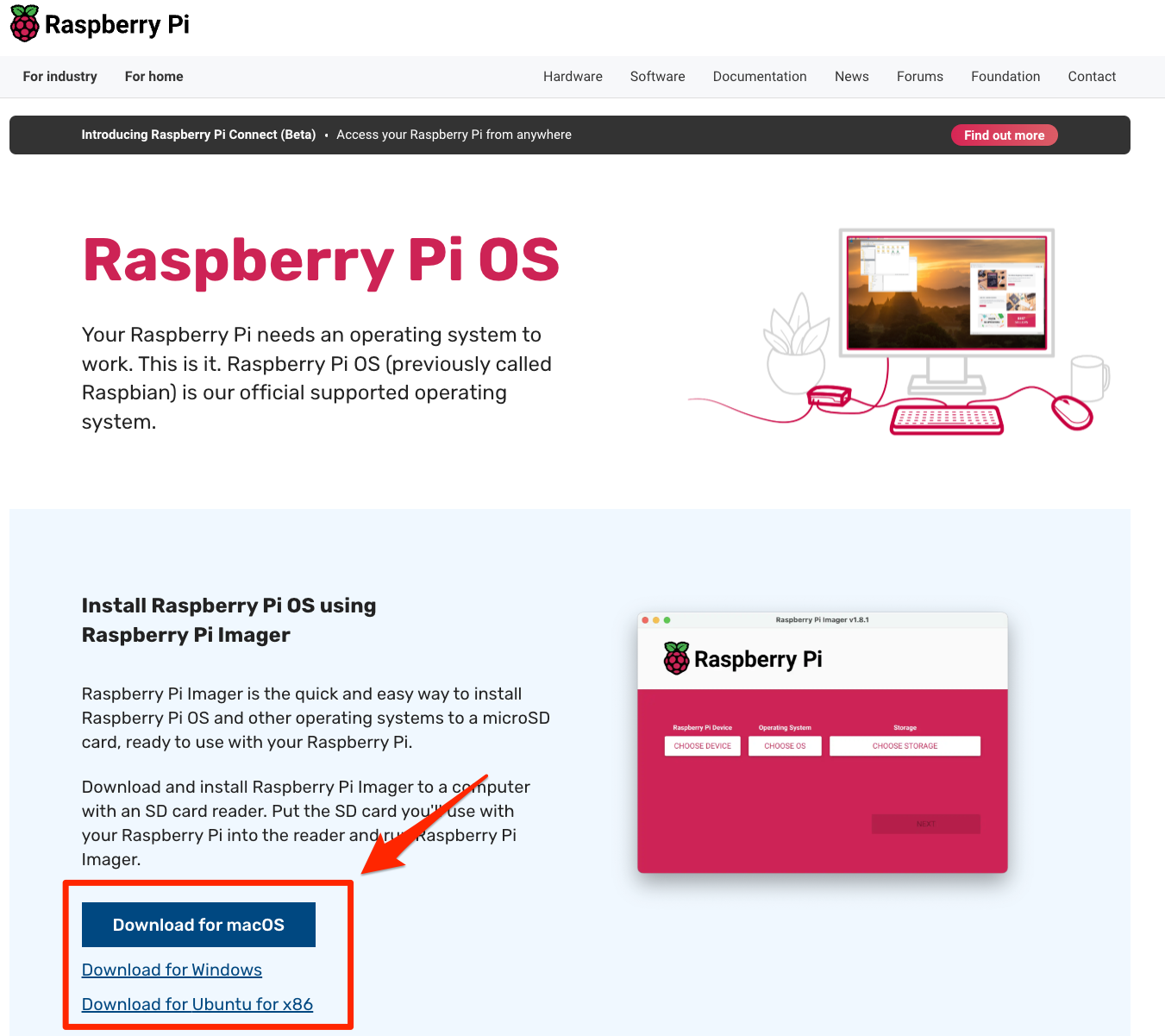
ai cast, see ai cast setup. - Use the Raspberry Pi Imager provided by Raspberry Pi to write the Actcast OS image to the SD card.
- Download and install the version of Raspberry Pi Imager for your environment.
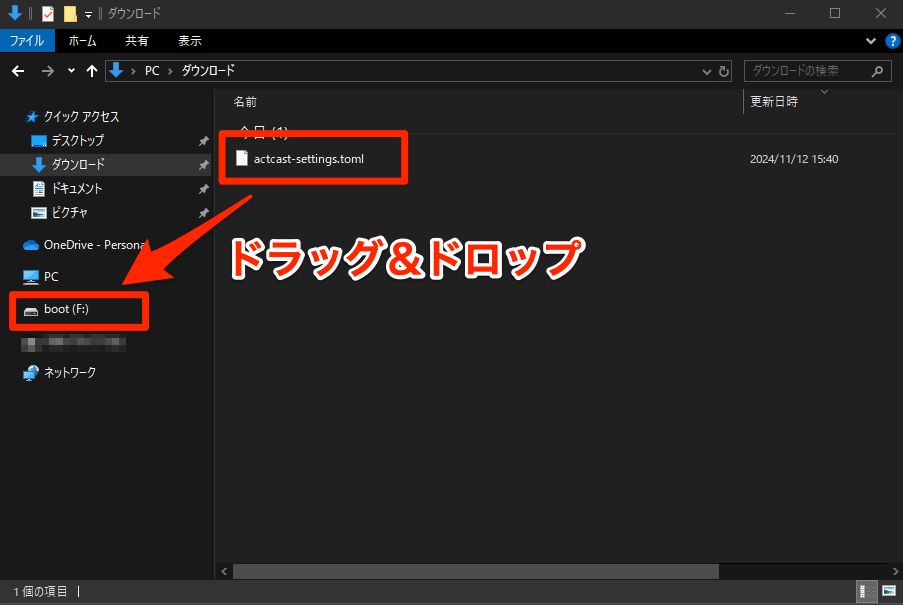
Copy the configuration file
Copy the configuration file generated in Step 2 to the SD card.
Insert the SD card and start the device
Insert the microSD card containing Actcast OS into the Raspberry Pi and turn it on.
Troubleshooting
If the device is not registered with Actcast, check the following:
-
Confirm that the device is supported by Actcast.
-
Confirm that the device is powered on and that its LED is lit.
-
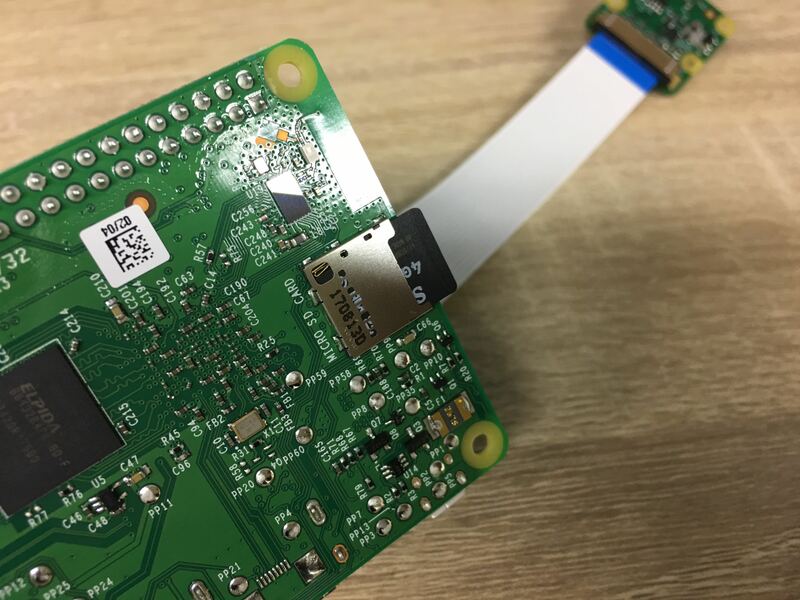
Confirm that the SD card is inserted in the correct orientation.
-
Confirm that the Wi-Fi settings are correct. Check that a PC or smartphone can connect to the same Wi-Fi network.
-
Confirm that the configuration file is correct.
- Insert the SD card into your PC and confirm that
actcast-settings.<hostname>.tomlwas copied correctly.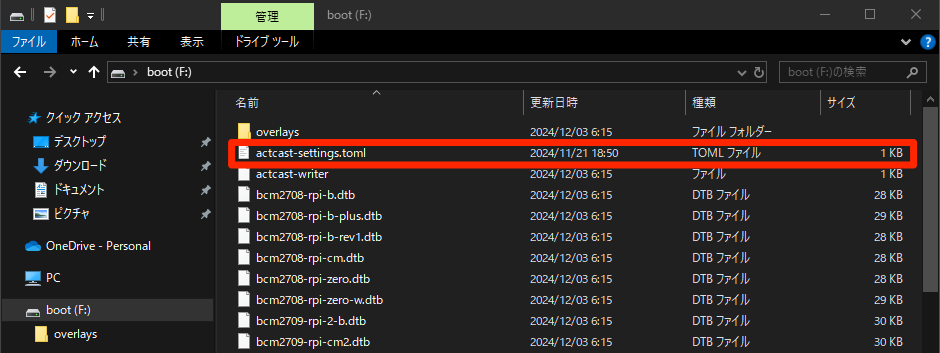
- Open
actcast-settings.<hostname>.tomlto review its contents. If the settings are incorrect, remove the file from the SD card, generate and download it again in Step 2, and copy it to the SD card.
actcast-settings.<hostname>.toml1 2 3 4 5 6 7 8 9 10 11 12 13 14# Actcast settings # This file is generated by the Actcast service. # expires at: 2025-01-05 12:42:14 provisioning_token = "********-****-****-****-************" hostname_prefix = "example-hostname" wifi_country = "JP" wifi = [ { ssid = "example-ssid", pass = "example-password" } ] # [manual_network_settings] # interface = "wired" # static_ip_addr = "192.168.0.10/24" # router = "192.168.0.1" # name_servers = ["8.8.8.8"]- The third line,
# expires at: 2025-01-05 12:42:14, indicates the expiration date. Confirm that the configuration file has not expired.
- Insert the SD card into your PC and confirm that
-
Check whether another device or SD card can be registered successfully.
If you have checked all of these items and still cannot register the device, contact contact@actcast.io.
Next step: Act