Integrate Cast with Google Sheets
This page was machine-translated. The Japanese page is the official version.
Actcast Cast can write data directly to Google Sheets through Google Apps Script (GAS).
Configure Google Sheets and Apps Script
You need a Google account.
-
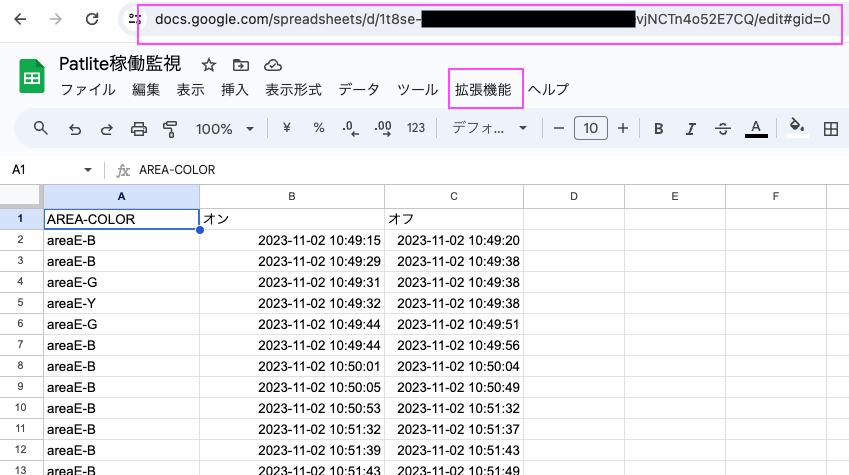
Create a blank spreadsheet. Copy its URL, then open Extensions > Apps Script.
-
Paste the following code into the Apps Script editor. Replace the spreadsheet URL with the one you copied, and adjust parameter names to match the Cast payload.
function doPost(e) { const url = "https://docs.google.com/spreadsheets/d/YOUR_SPREADSHEET_ID/edit"; const spreadsheet = SpreadsheetApp.openByUrl(url); const sheet = spreadsheet.getSheets()[0]; const data = JSON.parse(e.postData.contents); const params = { area_name: data.area_name, on: data.on, off: data.off, }; sheet.appendRow(Object.values(params)); return ContentService.createTextOutput("success"); } -
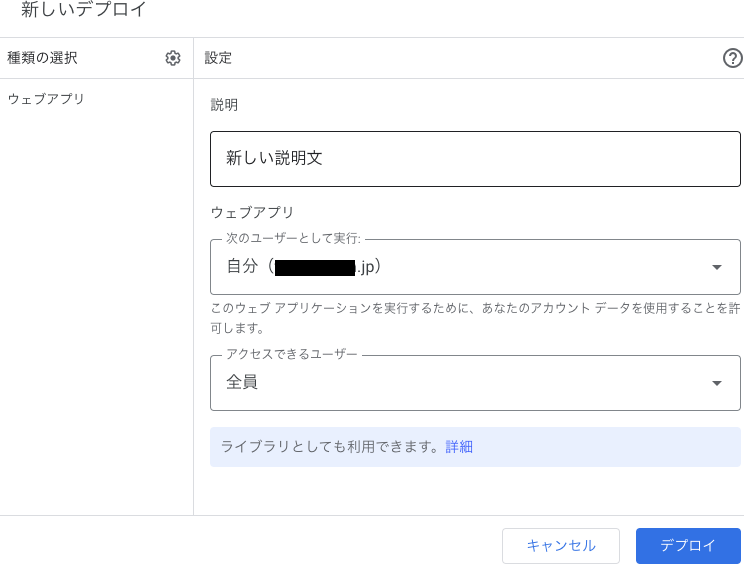
Deploy the script as a web app. Set Execute as to your account and Who has access to Anyone. Grant any requested permissions.
-
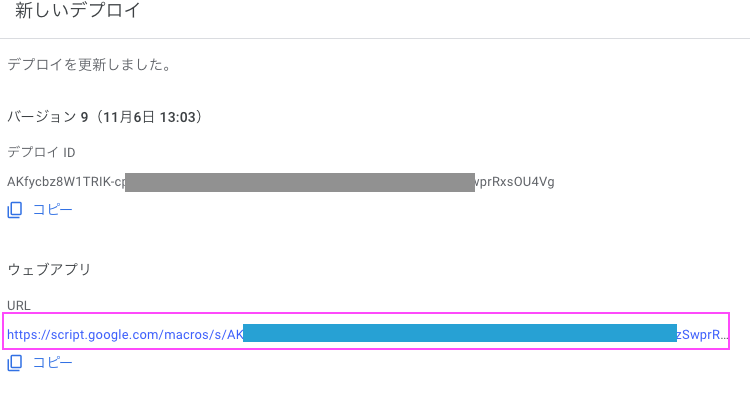
Copy the URL generated after deployment.
Configure Cast
- Sign in to Actcast, select Casts under the application you want, and click Make New Cast.
- Configure the trigger. To send all data without a condition, leave the trigger empty and click Configure Action.
- Select Webhook and paste the deployment URL into URL. Configure the request body parameter names to match the GAS script.
- Click Finish to create the Cast.
For more details about Cast, see Cast.
Rate limits
Webhook Casts have a rate limit that sets the maximum number of requests sent to the target service during a given period. If devices produce more Act Logs than the limit allows, Actcast discards the excess without sending requests. See Webhook Cast rate limits.
Disclaimer
Actcast provides an integration with third-party services such as Google Sheets and Google Apps Script, but does not guarantee that the integration will continue to work. Idein makes no warranties about third-party services’ accuracy, reliability, completeness, usefulness, or security. Check the provider’s official site for current specifications and terms. You are responsible for using third-party services and for any resulting damages. Contact Idein for Actcast integration questions; for Google services, contact Google support.