Network Setups for Using Existing IP Cameras
Network Setups for Using Existing IP Cameras
This page was machine-translated. The Japanese page is the official version.
This page describes network configurations for receiving video from an existing IP camera in a store and running AI inference on a Raspberry Pi or ai cast, when:
- The existing IP camera is on the store’s local network.
- The store’s local network is isolated from the Internet.
Choose a network configuration
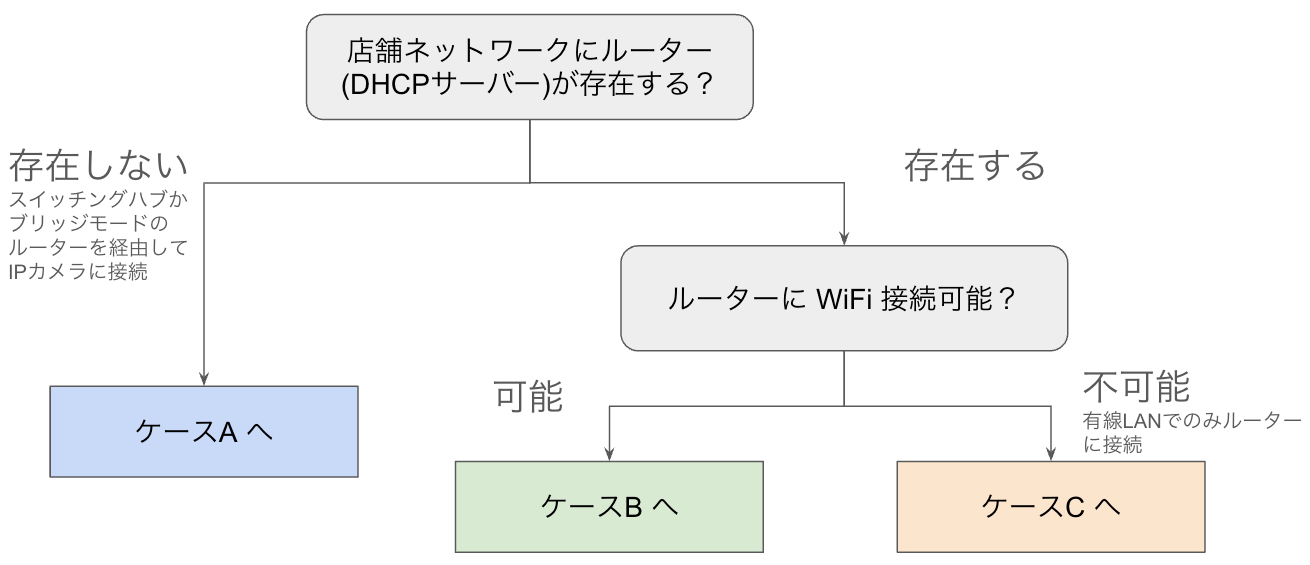
Use the flowchart to select a configuration for the store’s local network.
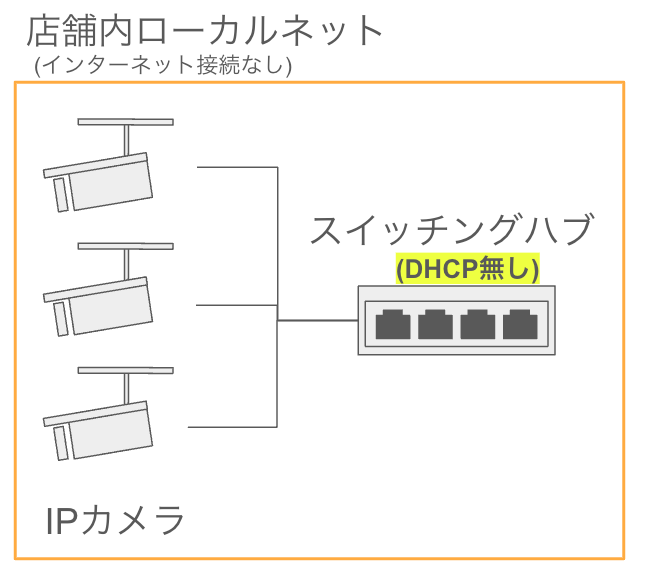
Case A: Local network uses a switch without DHCP
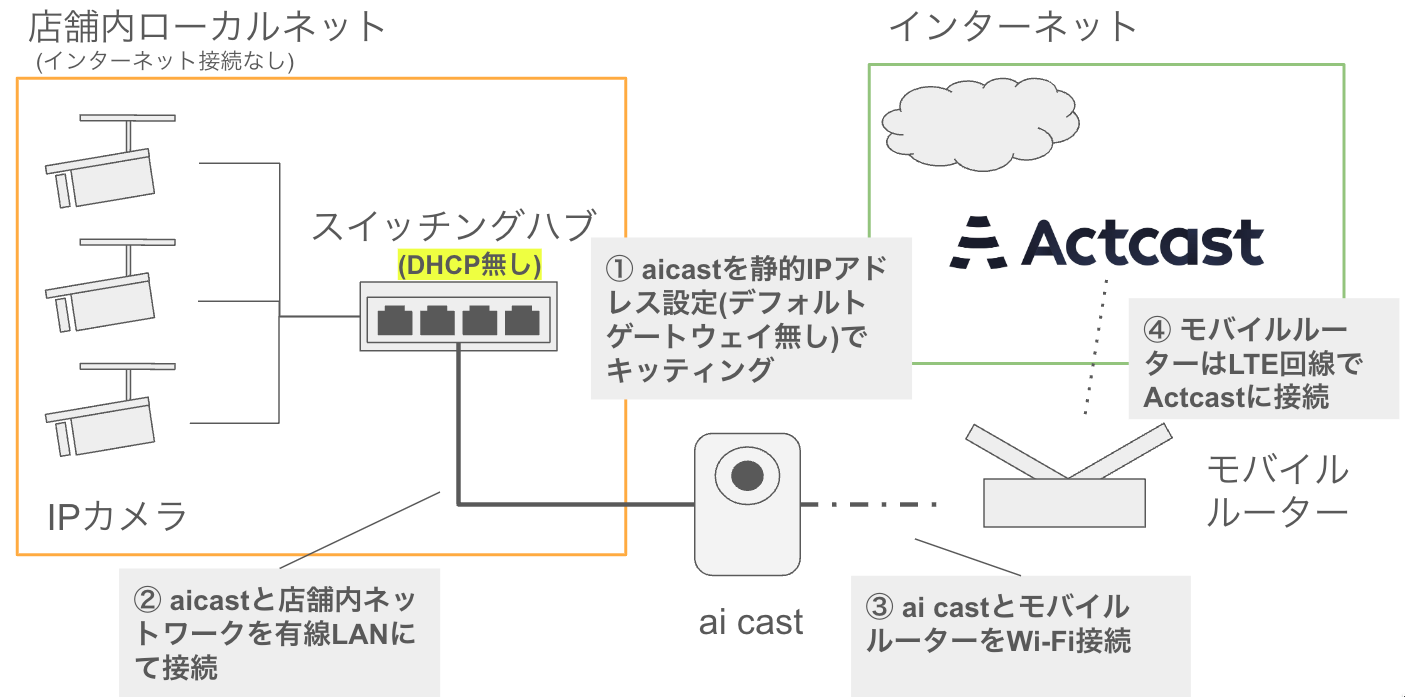
Configure the network as follows:
-
Assign a static IP address on the local network to ai cast.
Replace
192.0.2.10with the actual IP address.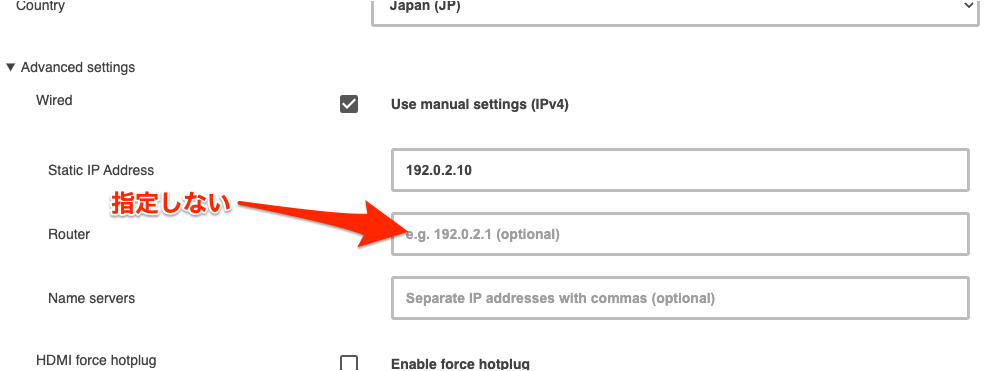
-
Connect ai cast to the store’s local network over wired LAN.
-
Connect ai cast to a mobile Wi-Fi router over Wi-Fi.
Replace
SSID/Passwordwith the actual values.
-
Connect the mobile Wi-Fi router to Actcast over LTE.
Case B: Local network uses a Wi-Fi router with DHCP
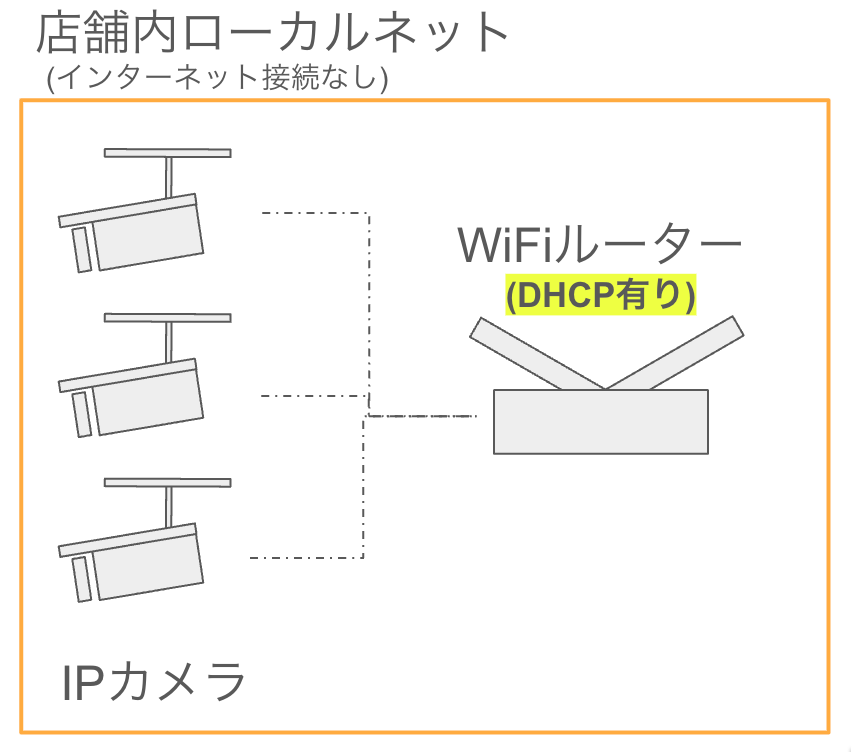
Configure the network as follows:
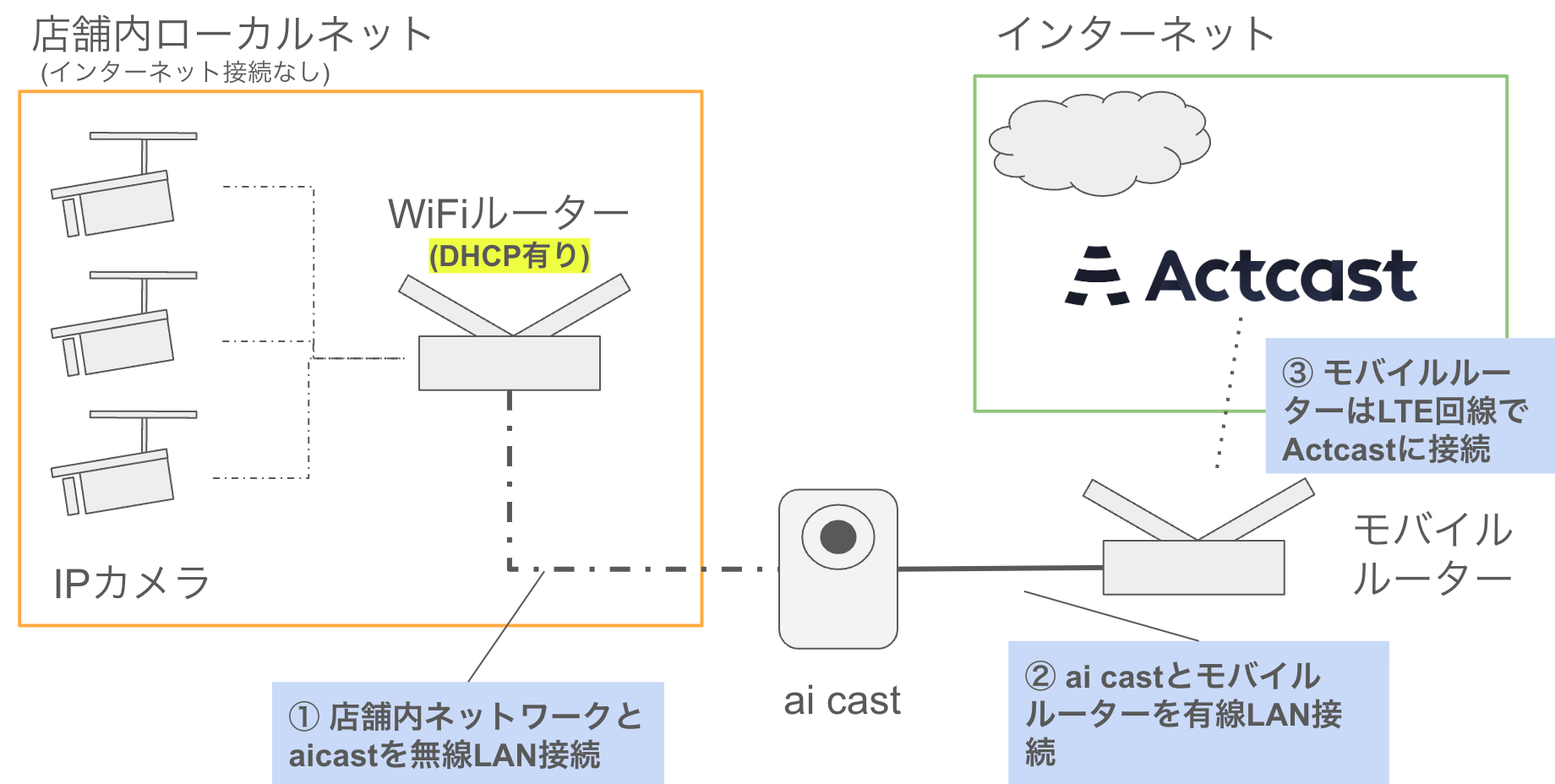
- Connect ai cast to the store’s network over Wi-Fi.
- Connect ai cast to a mobile router over wired LAN.
- Connect the mobile router to Actcast over LTE.
Case C: The local network uses a router, or ai cast cannot connect to it over Wi-Fi
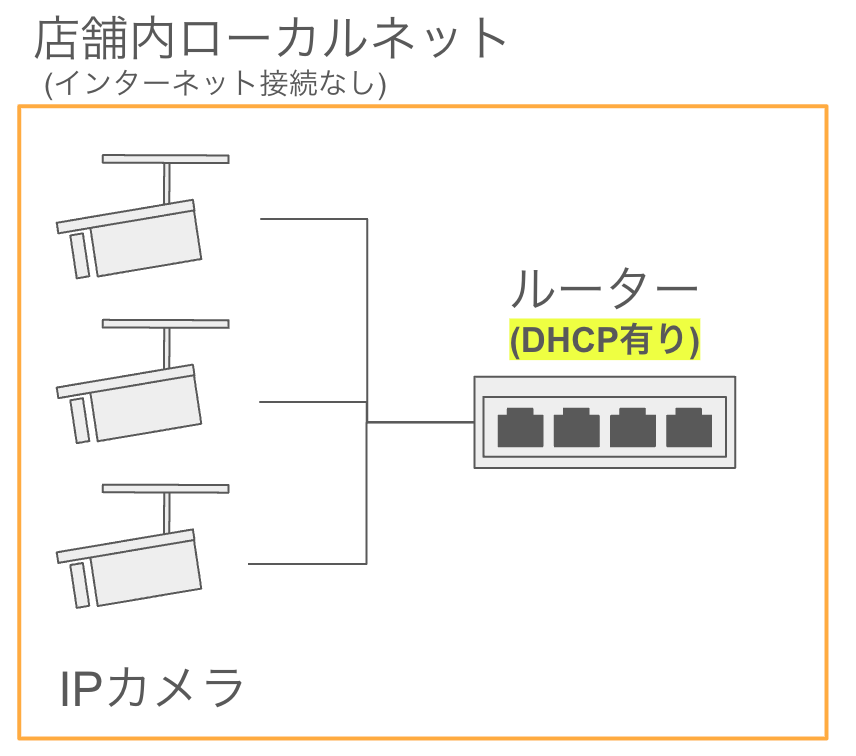
Configure the network as follows:
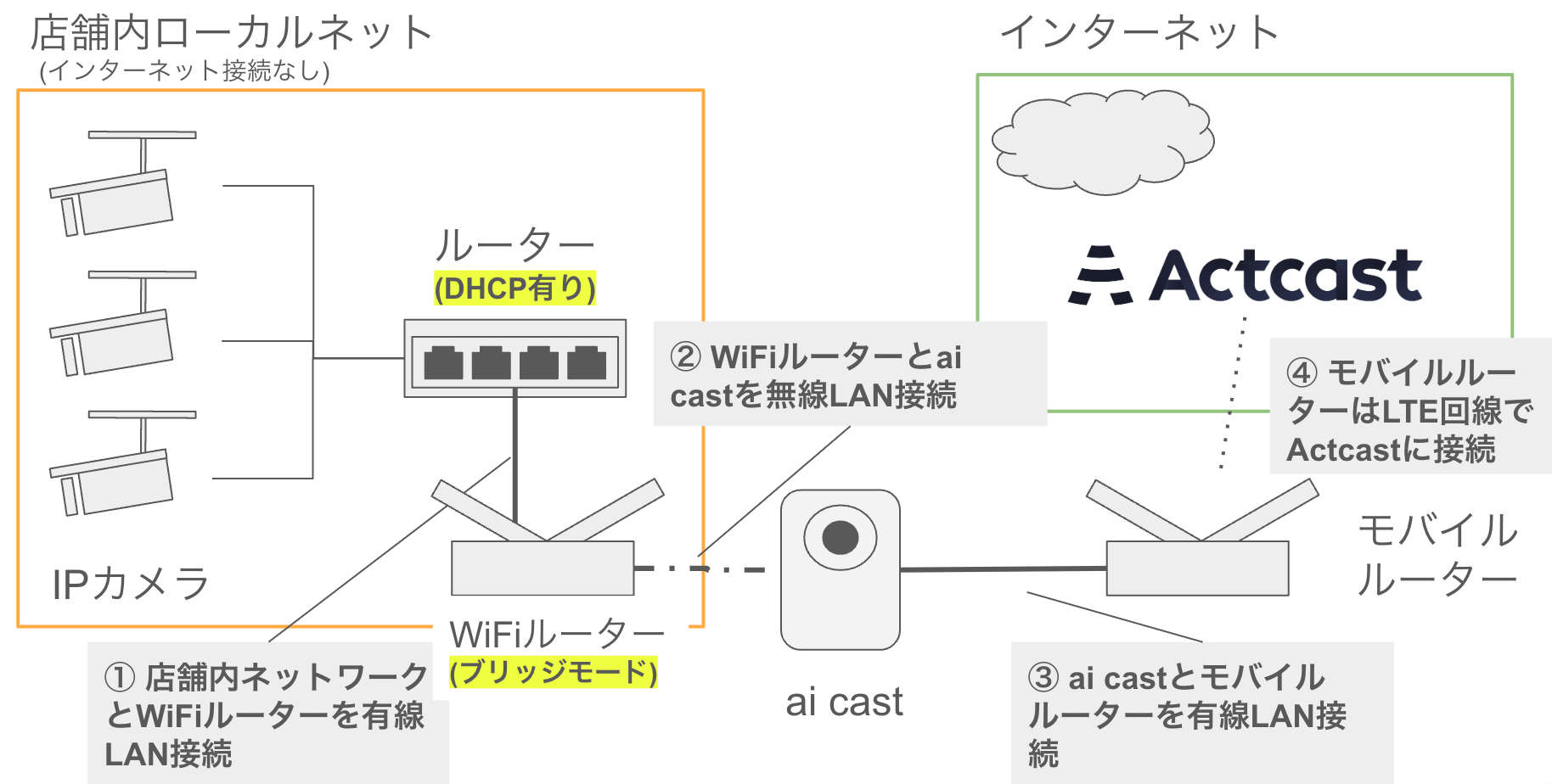
- Connect the store’s network to a Wi-Fi router over wired LAN.
- Connect the Wi-Fi router to ai cast over Wi-Fi.
- Connect ai cast to a mobile router over wired LAN.
- Connect the mobile router to Actcast over LTE.
Last updated on