Dev mode
This page was machine-translated. The Japanese page is the official version.
Overview
Dev mode is a mechanism that allows you to run and debug applications under development on ActcastOS via actdk. By enabling development mode on a device registered to Actcast, you can begin app development directly on that device.
Features & Benefits
| Feature | Description |
|---|---|
| Device Sharing | Enables app development on Actcast-registered devices without swapping SD cards or devices. |
| actdk Integration | Allows local app execution with debugging capabilities such as log viewing and step execution. |
| VS Code Dev Container | Enables direct code editing and behavior checks on the device via container access. |
| SSH Key Authentication | Registers your public key when enabling development mode, allowing secure shell access. |
Prerequisites
- A device with ActcastOS 4 installed
- SSH public key (e.g.,
~/.ssh/id_ed25519.pub) actdkversion v1.41.0 or later- Visual Studio Code
- VS Code Extensions:
- Remote - SSH
- Dev Containers
How to Enable Dev mode
- Open the Actcast Console → [Target Device]
- Click the power icon and select Enable Dev mode
- Paste your SSH public key into the dialog → Save
- Dev mode will be enabled, allowing app testing via ActDK and SSH access to the device.
Tip
If a DEV badge appears next to the device details, you’re all set.
How to Disable Dev mode
- Open the Actcast Console → [Target Device]
- Click the power icon and select Disable Dev mode
- Dev mode will be disabled, and ActDK and SSH access will no longer be available.
Development Workflow Using VS Code Dev Container
Here is a typical workflow for debugging directly on a device using VS Code + Dev Container from a local PC (macOS/Linux).
-
Power on the device and connect it to the network
- Confirm that ActcastOS boots and the device status in Actcast Console shows Found.
-
Enable Dev mode
- Follow the Enable Dev mode steps to allow SSH access.
-
Add an actdk remote
actdk remote add <NAME>@<DEVICE_IP><DEVICE_IP>is the device’s IP or hostname (e.g.,raspberrypi.local).<NAME>is an arbitrary remote name.
Tip
If you want to use hostnames, mDNS must be enabled.
-
Create a manifesto
- Create a manifesto file.
Tip
If you modify the manifesto, a rebuild will be required.
-
Build
actdk build <NAME><NAME>is the remote name you added with actdk remote add.- The app will be built on the device.
-
Launch the debug container on the device
actdk debug container <NAME> -
Launch VS Code
-
Install Remote - SSH & Dev Containers extensions (only once)
- Search and install
Remote - SSHandDev Containersin the Extensions view.
- Search and install
-
Connect to the device via Remote - SSH
- Click the blue button in the bottom left →
Remote-SSH: Connect to Host...→ selectactcast@<DEVICE_IP>.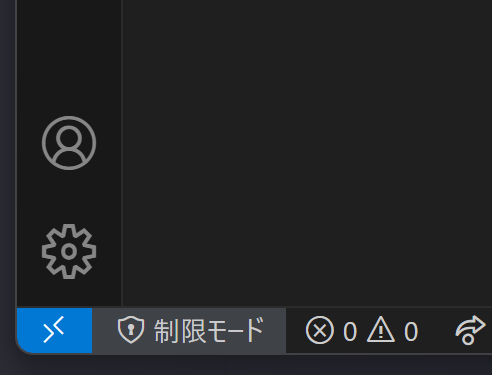
- Enter the passphrase for your SSH key when prompted by VS Code.
- After connection, a new VS Code window will open showing the device’s filesystem.
- Click the blue button in the bottom left →
-
Attach to the Dev Container
- Click the blue button in the bottom left →
Dev Containers: Attach to Running Container...→ select the container.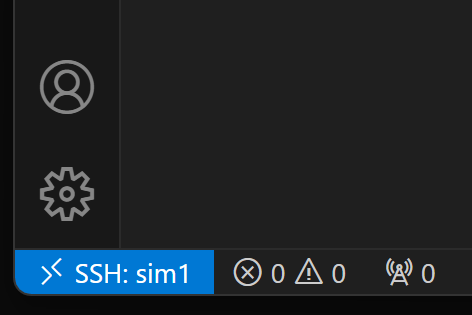
- Enter the passphrase for your SSH key when prompted by VS Code.
- The container environment will open as your workspace, with code completion and debugging available.
- Click the blue button in the bottom left →
-
Edit the code
- Modify and save the code.
Tip
These changes are made within the container. You’ll need to sync them manually to your local environment if needed.
-
Run the application
- From the VS Code menu: View > Terminal to open the terminal.
- Run the app using
./mainto test its behavior. If ActLog output is generated, it will appear here.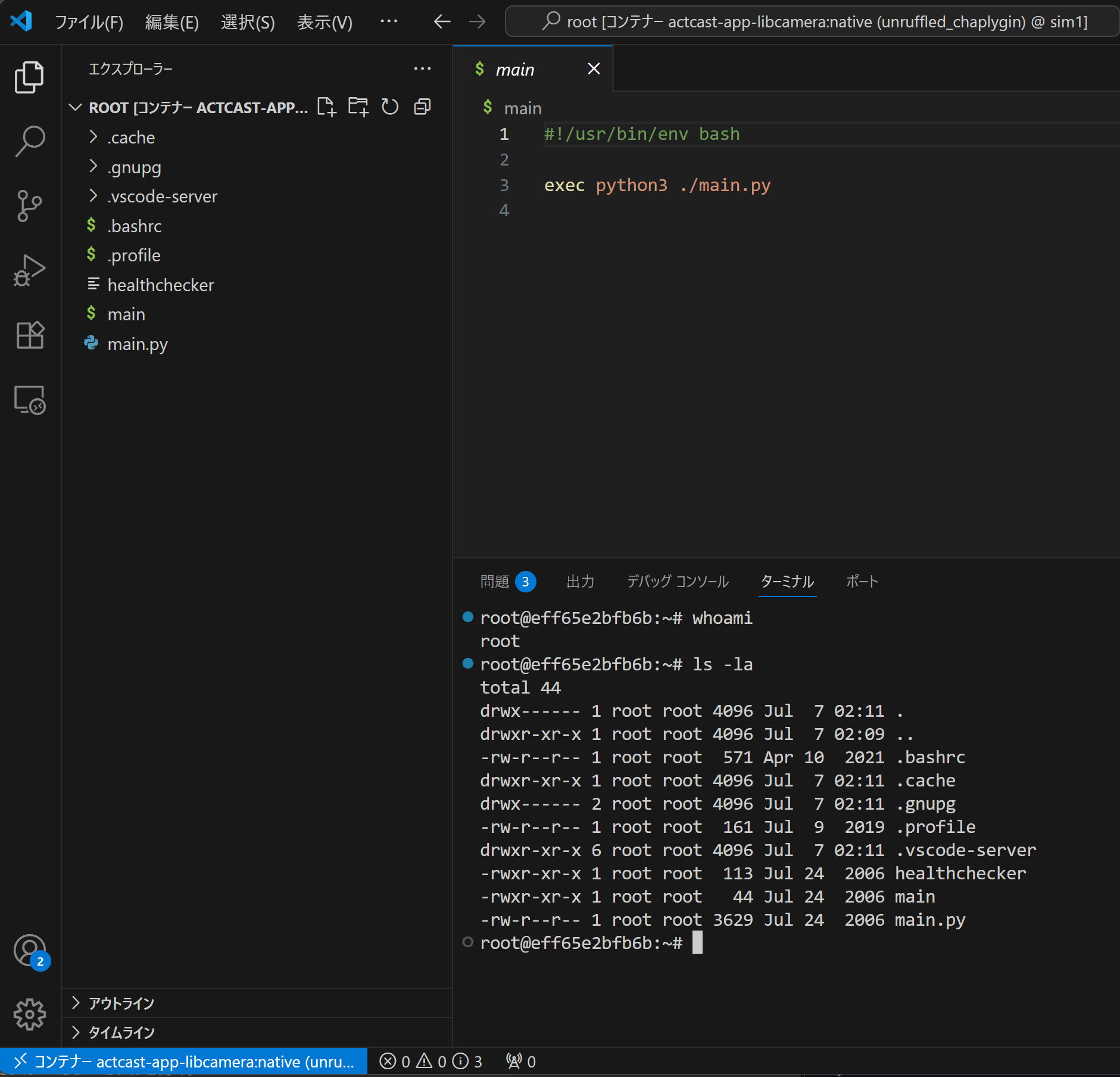
- Validate functionality by checking camera preview or sensor output.
Tip
While the app is running, you can test
Take Photofunctionality by runningactdk photo <NAME>from your local terminal. -
Sync changes to local environment
- Copy any changes made within the container back to your local environment.
Note
Code changes made inside the container are not automatically reflected in your local repository.
-
Stop the debug container
actdk stop <NAME> -
Disable development mode
- Follow the Disable Dev mode steps to turn off development mode.
Frequently Asked Questions (FAQ)
| Question | Answer |
|---|---|
| I want to update my SSH key | Disable development mode once, then re-register the new public key. |
| I want to try the production app during development mode | Stop the debug container using actdk stop <NAME>, then install the app from Actcast Console. |
| I want to see low-level kernel logs | SSH into the device and run dmesg or journalctl. |
| I can’t connect via SSH in VS Code | Check if the public key is correctly registered and review your ~/.ssh/known_hosts file. |